

PNG vs JPG vs WebP: Which Image Format Should You Use in 2026?
Images are one of the biggest contributors to website loading time. Choosing the wrong image format can increase file sizes, slow down your pages, and affect user experience. Whether you're a blogger, designer, developer, or business owner, understanding the differences between image formats helps you make better decisions.
If you've ever wondered PNG vs JPG vs WebP, you're not alone. Each format has its own strengths, and using the right one can improve website speed, SEO, storage efficiency, and visual quality.
In this guide, you'll learn how PNG, JPG, and WebP work, their advantages and disadvantages, real-world use cases, and how to decide which format is best for your next project.
What Is the Difference Between PNG, JPG, and WebP?
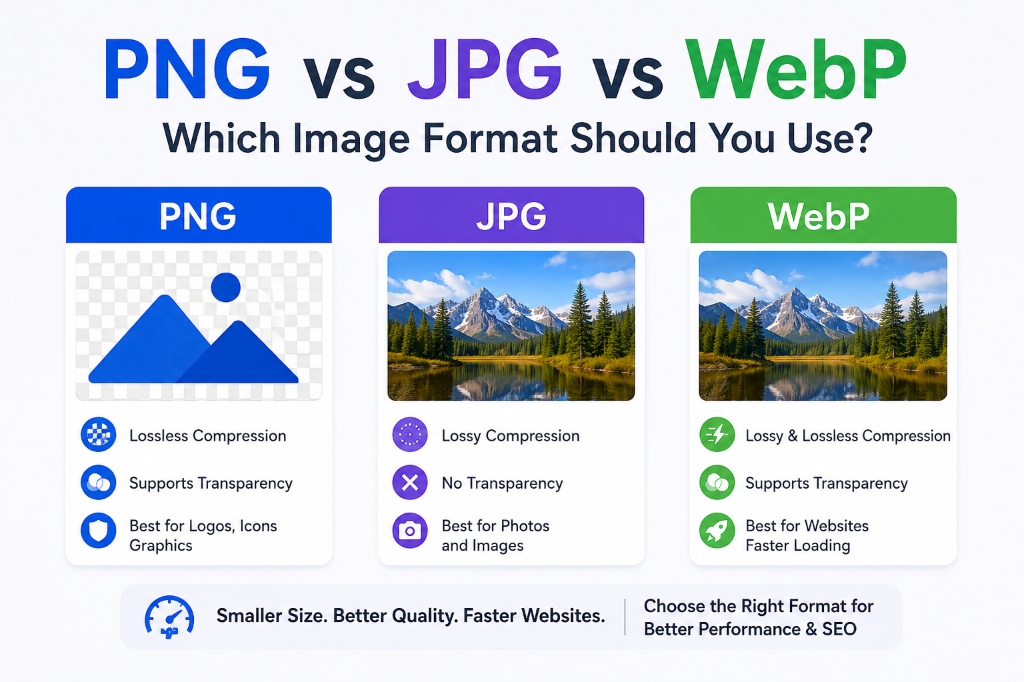
> PNG, JPG, and WebP are popular image formats that differ in compression, quality, transparency support, and file size. PNG uses lossless compression for maximum quality, JPG uses lossy compression for smaller file sizes, and WebP combines excellent quality with much smaller file sizes, making it ideal for modern websites.
| Format | Compression | Transparency | Animation | Typical File Size | Best For |
|---|---|---|---|---|---|
| PNG | Lossless | ✅ Yes | ❌ No | Large | Logos, graphics, screenshots |
| JPG | Lossy | ❌ No | ❌ No | Small | Photos |
| WebP | Lossy & Lossless | ✅ Yes | ✅ Yes | Very Small | Websites, blogs, eCommerce |
For most modern websites, WebP provides the best balance between image quality and loading speed.
Why Does Image Format Matter?
Many people only think about how an image looks. Search engines and browsers also care about how efficiently that image is delivered.
Choosing the correct format helps:
- Reduce page load time
- Improve Core Web Vitals
- Save server storage
- Reduce bandwidth usage
- Improve user experience
- Increase mobile performance
- Support better SEO rankings
For example, a homepage with 20 large PNG images may load several seconds slower than the same page using optimized WebP images.
Understanding PNG
PNG (Portable Network Graphics) was designed to preserve image quality without losing information during compression.
Unlike JPG, PNG uses lossless compression, meaning every pixel is retained even after saving the file multiple times.
Advantages of PNG
- Excellent image quality
- Supports transparent backgrounds
- Perfect for logos
- Great for icons
- Ideal for UI elements
- Sharp text rendering
- No quality loss after editing
Disadvantages of PNG
- Much larger file sizes
- Slower loading on websites
- Uses more storage
- Can reduce website performance
Best Use Cases for PNG
PNG is the best choice when image quality is more important than file size.
Examples include:
- Company logos
- Transparent product images
- App icons
- User interface elements
- Infographics
- Diagrams
- Screenshots
- Technical illustrations
For example, if your company logo has a transparent background, PNG preserves that transparency perfectly.
Understanding JPG
JPG (or JPEG) is the world's most commonly used image format for photographs.
Instead of preserving every pixel exactly, JPG uses lossy compression, removing image data that the human eye usually doesn't notice.
The result is a much smaller file size.
Advantages of JPG
- Small file size
- Loads quickly
- Excellent browser compatibility
- Perfect for photography
- Easy to share online
- Saves storage space
Disadvantages of JPG
- Quality decreases after compression
- Doesn't support transparency
- Editing repeatedly reduces quality
- Not ideal for text-heavy graphics
Best Use Cases for JPG
JPG is the preferred choice for:
- Portrait photography
- Landscape photography
- Product photos
- Travel blogs
- Social media uploads
- News websites
- Portfolio websites
If you're uploading hundreds of vacation photos, JPG is usually the most practical option.
Understanding WebP
WebP is a modern image format developed to provide high-quality images with much smaller file sizes than PNG and JPG.
It supports both lossy and lossless compression, along with transparency and animation, making it one of the most versatile image formats available today.
Because of its efficiency, WebP has become the preferred format for websites focused on speed and SEO.
Advantages of WebP
- Smaller file sizes than PNG and JPG
- Excellent image quality
- Supports transparency
- Supports animation
- Faster page loading
- Better mobile performance
- Improved Core Web Vitals
- Ideal for modern websites
Disadvantages of WebP
- Older software may not support it
- Some legacy browsers and applications have limited compatibility
- Not always suitable for professional print workflows
Today, however, all major modern browsers support WebP, making it a safe choice for most web projects.
PNG vs JPG vs WebP Comparison
| Feature | PNG | JPG | WebP |
|---|---|---|---|
| File Size | Large | Medium | Smallest |
| Image Quality | Excellent | Very Good | Excellent |
| Compression | Lossless | Lossy | Lossy & Lossless |
| Transparency | ✅ | ❌ | ✅ |
| Animation | ❌ | ❌ | ✅ |
| Website Speed | Slow | Fast | Fastest |
| SEO Friendly | Moderate | Good | Excellent |
| Best for Photos | ❌ | ✅ | ✅ |
| Best for Logos | ✅ | ❌ | ✅ |
| Best for Websites | Good | Better | Best |
Which Format Should You Choose?
The answer depends on how the image will be used.
Choose PNG if you need:
- Transparent backgrounds
- Logos
- Icons
- Graphics
- Screenshots
- Maximum editing quality
Choose JPG if you need:
- Photographs
- Social media uploads
- Email attachments
- Smaller file sizes
- Printing standard photos
Choose WebP if you need:
- Faster websites
- Better SEO
- Lower bandwidth usage
- eCommerce product images
- Blog images
- Landing pages
- Mobile optimization
Real-World Examples
Imagine you're running an online store.
- Use PNG for your brand logo with a transparent background.
- Use JPG for downloadable product photography intended for catalogs or print.
- Use WebP for product images displayed on your website to reduce loading times and improve user experience.
Improve Your Images with Free TechbyJeel Tools
Before uploading images to your website, optimize them using our free tools:
- Image Compressor: Image Compressor
- Image Converter: Image Converter
- Image Resizer: Image Resizer
- Image Cropper: Image Cropper
These tools help reduce file sizes, convert between formats, and prepare images for faster, SEO-friendly websites without installing any software.
Common Mistakes When Choosing an Image Format
Choosing the wrong image format can hurt website performance, reduce image quality, and create unnecessary storage costs. Here are some of the most common mistakes and how to avoid them.
Using PNG for Every Image
PNG offers excellent quality, but it isn't the right choice for every situation.
Uploading large PNG photos to your website can significantly increase page size and slow loading times.
Better approach: Use PNG only when you need transparency or perfectly sharp graphics.
Uploading Large JPG Files Without Compression
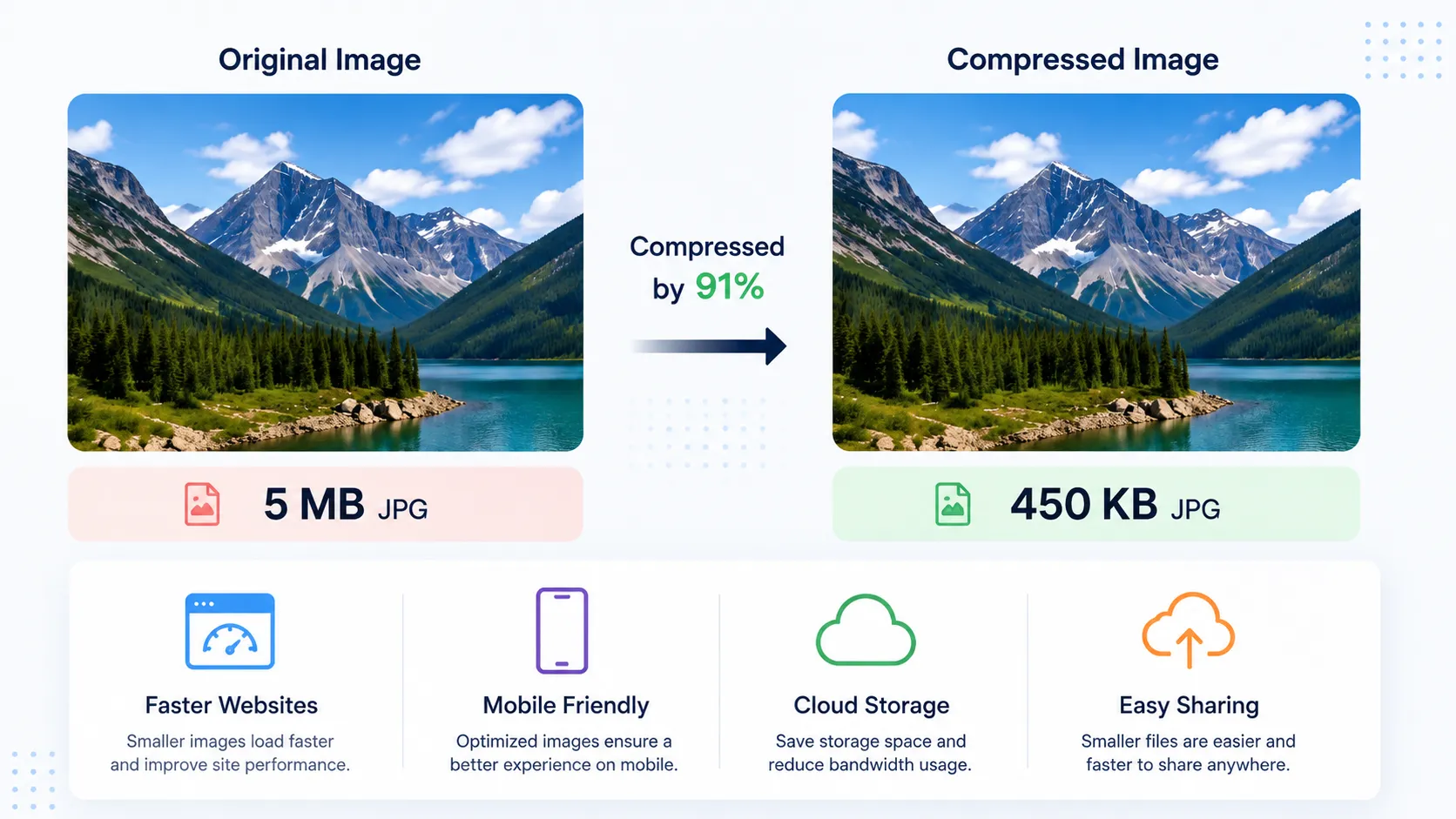
Many cameras and smartphones produce high-resolution JPG images that are much larger than necessary for websites.
Uploading these files without optimization wastes bandwidth and slows your pages.
Tip: Compress JPG images before publishing.
👉 Try our Image Compressor: Image Compressor
Ignoring WebP for Modern Websites
Some website owners still upload only PNG or JPG files, even though WebP provides much smaller file sizes while maintaining similar visual quality.
If your website supports WebP, there is little reason not to use it for most web images.
Converting Images Multiple Times
Repeatedly converting a JPG into another JPG can reduce quality because of repeated lossy compression.
Best practice:
- Keep an original high-quality version.
- Export optimized copies only when needed.
- Avoid unnecessary conversions.
Forgetting Responsive Images
Uploading a 4000-pixel-wide image for a mobile screen wastes bandwidth.
Resize images before publishing.
👉 Helpful tool:
- Image Resizer: Image Resizer
Image Format Selection Guide
Use this quick guide whenever you're unsure which format to choose.
| If You Need... | Recommended Format |
|---|---|
| Website images | WebP |
| Blog featured images | WebP |
| Product images | WebP |
| Company logo | PNG |
| Transparent background | PNG |
| Screenshots | PNG |
| Digital artwork | PNG |
| Photographs | JPG |
| Social media uploads | JPG or WebP |
| Email attachments | JPG |
| Animated images | WebP |
| Fast-loading landing pages | WebP |
Image Optimization Tips for Better SEO
Choosing the right image format is only one part of image optimization. Search engines also consider image size, accessibility, and loading performance.
Follow these best practices:
1. Compress Images Before Uploading
Smaller files load faster without noticeably affecting quality.
Use our free:
- Image Compressor - Image Compressor
2. Resize Images to the Correct Dimensions
Avoid uploading images that are much larger than the space they occupy.
Example:
Instead of uploading a 5000 × 3000 px image for a 1200 × 800 px section, resize it first.
Use:
- Image Resizer - Image Resizer
3. Use Descriptive File Names
Instead of:
IMG_98372.jpgUse:
running-shoes-blue.webpThis makes images easier to understand for both users and search engines.
4. Write Meaningful Alt Text
Alt text improves accessibility and helps search engines understand your images.
Good example:
Blue running shoes with white soles on a wooden floorPoor example:
image15. Prefer WebP for Web Delivery
For most websites, WebP provides:
- Faster loading
- Better Core Web Vitals
- Reduced bandwidth usage
- Improved user experience
6. Avoid Uploading Unoptimized Screenshots
Screenshots often contain text and interface elements that require sharp edges.
For screenshots:
- Use PNG if clarity is critical.
- Use WebP (lossless) when supported to reduce file size while preserving quality.
PNG vs JPG vs WebP: Quick Comparison Summary
| Feature | PNG | JPG | WebP |
|---|---|---|---|
| Compression | Lossless | Lossy | Lossy & Lossless |
| Quality | Excellent | Very Good | Excellent |
| File Size | Largest | Medium | Smallest |
| Transparency | ✅ | ❌ | ✅ |
| Animation | ❌ | ❌ | ✅ |
| Best for Photos | ❌ | ✅ | ✅ |
| Best for Graphics | ✅ | ❌ | ✅ |
| Best for Websites | Good | Good | Excellent |
| SEO Performance | Good | Good | Excellent |
| Modern Browser Support | Excellent | Excellent | Excellent |
Related Free Tools on TechbyJeel
Improve your workflow with these free online tools:
- Image Compressor - Image Compressor
- Image Converter - Image Converter
- Image Resizer - Image Resizer
- Image Cropper - Image Cropper
- Learn more about image optimization in our guide: how to compress images without losing quality
Trusted References
For additional technical information, refer to these authoritative resources:
- Google - https://developers.google.com/speed/webp
- MDN Web Docs - https://developer.mozilla.org/docs/Web/Media/Formats/Image_types
- Google PageSpeed Insights - https://pagespeed.web.dev/
- Mozilla Developer Network - https://developer.mozilla.org/
Conclusion
Choosing between PNG vs JPG vs WebP depends on how you plan to use your images. PNG is ideal for graphics and transparent backgrounds, JPG remains a strong choice for photographs, and WebP delivers the best balance of quality, compression, and performance for modern websites.
For most blogs, business websites, and online stores, WebP is the recommended format because it helps pages load faster while maintaining excellent image quality. Combined with proper compression, resizing, and descriptive alt text, it can improve user experience and support better SEO.
Before publishing any image, take a few minutes to optimize it. A smaller, well-formatted image can reduce bandwidth usage, improve Core Web Vitals, and create a smoother browsing experience for your visitors.
Ready to optimize your images? Explore the free Image Tools on TechbyJeel, including our Image Compressor, Image Converter, Image Resizer, and Image Cropper, and make every image work harder for your website.
Frequently Asked Questions
1. Which image format is best for websites?
For most modern websites, WebP is the best choice. It produces significantly smaller file sizes than PNG and JPG while maintaining high visual quality, helping pages load faster and improving SEO and user experience.
2. Should I use PNG or JPG for photos?
JPG is generally better for photographs because it offers efficient compression with good image quality. PNG files are much larger and are better suited for graphics, logos, screenshots, and images that require transparency.
3. Does WebP support transparent backgrounds?
Yes. WebP supports transparency just like PNG while often producing much smaller file sizes. This makes it a great option for logos, icons, and other web graphics that need transparent backgrounds.
4. Does WebP improve SEO?
WebP doesn't directly increase rankings, but its smaller file sizes improve page speed and Core Web Vitals. Faster websites often provide a better user experience, which can positively influence SEO performance.
5. Can I convert PNG or JPG images to WebP?
Yes. You can easily convert PNG or JPG images into WebP using an online image converter. Converting images before uploading them to your website is a simple way to reduce file sizes while maintaining excellent quality.