

Copying a list from a spreadsheet, website, database, or document can leave you with the same lines repeated again and again. Cleaning those duplicates manually is easy when you have 10 lines, but it becomes painful when you have hundreds or thousands.
If you want to remove duplicate lines from text instantly, there are faster ways to clean your data without checking every line yourself. In this guide, you'll learn what duplicate lines are, why they appear, how to remove them manually, and how an online Duplicate Line Remover can make the process much faster.
What Is a Duplicate Line Remover?
A Duplicate Line Remover is a tool that finds repeated lines in a block of text and keeps only one occurrence of each duplicate. Instead of manually searching through a long list, you can paste your text into the tool and generate a cleaner list in seconds.
For example, if a list contains Apple three times and Banana twice, a duplicate line remover can reduce it to one Apple and one Banana, making the final text easier to read, copy, analyze, or reuse.
> Quick answer: To remove duplicate lines from text, paste your list into a duplicate line remover, run the cleanup, review the unique lines, and copy the result. This is much faster than manually searching for repeated entries, especially when working with large lists.
Why Do Duplicate Lines Appear?
Duplicate lines are extremely common because text is often moved between different applications and sources.
You might copy information from a spreadsheet, export data from a system, collect URLs from several pages, or combine multiple lists. When those sources overlap, the same entry can appear more than once.
Here are some common situations where duplicate lines appear:
Copying Data From Spreadsheets
Imagine you have a list of customer names copied from several spreadsheet columns or files:
John Smith
Sarah Miller
David Brown
John Smith
Michael Wilson
Sarah Miller
The repeated names may be perfectly valid in the original data, but if your goal is to create a unique list, those duplicates need to be removed.
Combining Multiple Lists
Suppose you maintain separate lists of websites, keywords, products, or contacts. When you combine them into one document, overlapping entries can create duplicates.
For example:
example.com
techsite.com
tools.com
example.com
another-site.com
tools.com
Manually checking this list works for a few entries. With thousands of URLs, it quickly becomes inefficient.
Copying Text From Websites
Web pages can contain repeated navigation items, links, headings, or other content. If you copy text from multiple pages, you may accidentally collect the same lines several times.
This is particularly common when building keyword lists, research notes, URL lists, or content research documents.
Developer and Technical Data
Developers also deal with duplicate lines regularly.
Logs, configuration values, IDs, file paths, package names, IP addresses, and other text-based data can contain repeated entries. Removing duplicates can make the information easier to inspect before it is processed further.
Exported or Generated Data
Data exported from applications can sometimes contain repeated records. Before moving that information into another tool, spreadsheet, script, or database, you may want to create a unique list.
The important point is that duplicate lines are not always errors. Sometimes repeated values are intentional. The goal is to remove them only when uniqueness is actually required.
Why Remove Duplicate Lines?
Cleaning duplicate lines is more than a cosmetic task. A unique list is often easier to work with and less likely to create confusion later.
Here are some practical benefits:
- Cleaner data: Remove unnecessary repetition from lists.
- Better readability: Make long text easier to scan.
- Faster analysis: Work with unique values instead of repeated entries.
- Less manual work: Avoid checking hundreds of lines one by one.
- Easier copying: Create a clean list that can be pasted into another application.
- Better organization: Keep research, URLs, keywords, names, and other text structured.
- Fewer processing mistakes: Reduce accidental repeated entries before using the data elsewhere.
For developers, uniqueness is also a common programming requirement. JavaScript, for example, provides the Set object specifically for collections of unique values. A value can occur only once in a Set, and values are iterated in insertion order. (MDN Web Docs)
Manual Ways to Remove Duplicate Lines
There are several ways to clean duplicate lines. The best method depends on how much text you have and what tools you already use.
1. Remove Duplicates Manually
For a very short list, you can simply scan the text and delete repeated entries.
For example:
Apple
Orange
Banana
Apple
Mango
Orange
You could manually delete the second Apple and Orange.
This method is fine for a small list.
The problem: It does not scale.
When you have hundreds or thousands of lines, manually comparing each entry becomes slow and increases the chance of accidentally deleting the wrong line.
2. Use a Spreadsheet
If your data is already inside Excel or another spreadsheet application, you can use its built-in duplicate-removal features.
This is useful when your information is structured into rows and columns.
For example, a list of:
Apple
Orange
Apple
Banana
Orange
can be cleaned so that each value appears once.
Spreadsheets are useful when you're already working with structured data, but opening a spreadsheet just to clean a simple block of text can be unnecessary.
3. Use Code
Developers can remove duplicate values programmatically.
In JavaScript, one simple approach is to split text into lines, create a Set, and convert the unique values back into an array:
const text = `Apple
Orange
Apple
Banana
Orange`;

const uniqueLines = [...new Set(text.split("\n"))];

console.log(uniqueLines.join("\n"));
The result is:
Apple
Orange
Banana
This works because JavaScript's Set stores unique values and ignores an attempt to add the same value again. (MDN Web Docs)
For developers handling duplicate data repeatedly, this approach can be useful. But if you simply have a text list that needs cleaning once, writing code is unnecessary overhead.
The Faster Way: Use an Online Duplicate Line Remover
If you don't want to manually inspect a long list or write code, an online Duplicate Line Remover is usually the simplest option.
With a dedicated tool, the basic workflow is straightforward:
1. Copy your text
2. Paste it into the Duplicate Line Remover
3. Remove the duplicate lines
4. Review the cleaned result
5. Copy the unique text
You don't need to create a spreadsheet or write a script for a simple cleanup task.
Try the TechbyJeel Duplicate Line Remover
If you regularly work with lists, URLs, keywords, names, IDs, or other line-based text, you can use the Duplicate Line Remover on TechbyJeel Tools to clean repeated lines quickly.
For other text-cleaning tasks, you can also use the Text Case Converter when you need to change capitalization or formatting.
Quick tip: Always keep a copy of your original text before removing duplicates. Once repeated lines are deleted, you may not be able to reconstruct the original order or frequency of those entries.
When Should You Use a Duplicate Line Remover?
A duplicate line remover is especially useful when you're working with:
- Large keyword lists
- URL collections
- Product names
- Customer or contact lists
- Research notes
- File names
- Developer logs
- IP addresses
- Email lists
- Search queries
- Database exports
- Copied spreadsheet data
For small lists, manual cleanup may be perfectly adequate. But as the number of lines increases, an automated approach saves time and reduces human error.
What to Check Before Removing Duplicates
Before cleaning your text, understand what you consider a "duplicate."
For example:
Apple
apple
APPLE
Are these three lines duplicates?
That depends on your goal. A basic duplicate check may treat them as different text because their capitalization differs. Similarly, extra spaces can affect whether two lines are considered identical.
For example:
Apple
 Apple
Apple
Visually, they look almost identical, but the leading or trailing spaces can make them different values.
So before removing duplicates, consider:
- Should uppercase and lowercase text be treated as the same?
- Should leading or trailing spaces be ignored?
- Should blank lines be removed?
- Does the original order matter?
- Do you want to preserve the first occurrence?
- Are repeated lines actually meaningful in your data?
These details matter when you're cleaning data for professional or technical use.
A Simple Rule for Choosing the Right Method
Use this simple rule:
| Amount of Text | Recommended Method |
|---|---|
| A few lines | Manual cleanup |
| Dozens of lines | Online duplicate remover |
| Hundreds of lines | Online tool or spreadsheet |
| Thousands of lines | Dedicated tool, spreadsheet, or script |
| Repeated automated tasks | Script or data-processing workflow |
For most people who simply need to clean a block of copied text, an online duplicate line remover is the quickest option.
Step-by-Step Walkthrough: Removing Duplicate Lines
If you have a long list containing repeated lines, the fastest approach is to use a duplicate line remover. Paste your text into the tool, remove duplicate entries, review the cleaned result, and copy it. This avoids manually comparing lines and is especially useful for URLs, keywords, names, IDs, logs, and other line-based data.
Step 1: Copy Your Text
Start by copying the text you want to clean.
Your text might come from:
- A spreadsheet
- A website
- A CSV or exported file
- A database
- A code editor
- A document
- Search results
- A keyword research tool
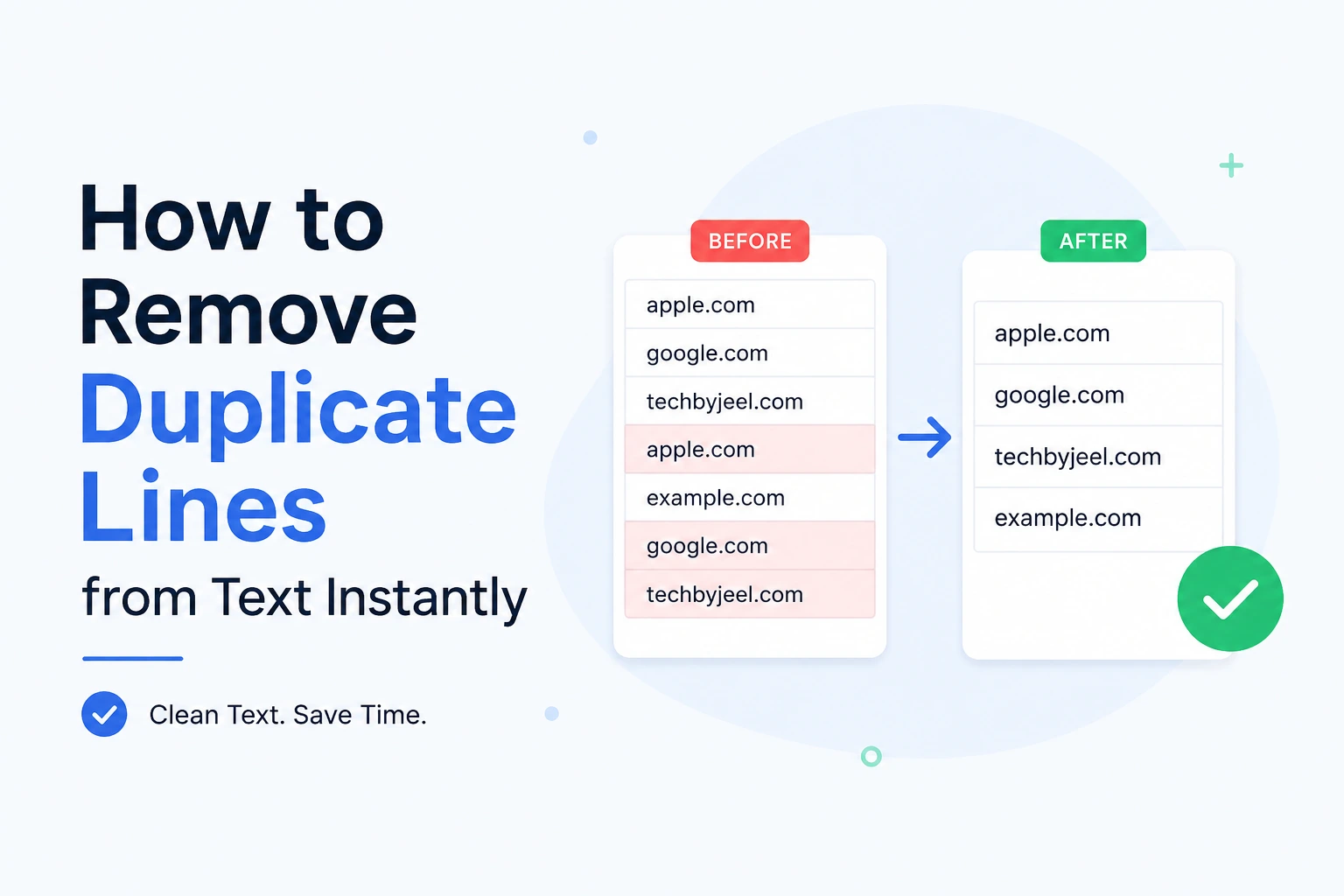
For example:
apple.com
google.com
techbyjeel.com
apple.com
example.com
google.com
techbyjeel.com
The list contains repeated URLs, so cleaning it manually would mean finding each repeated entry and deleting it.
Step 2: Paste the Text Into the Duplicate Line Remover
Open the Duplicate Line Remover and paste your text into the input area.
You do not need to rearrange the list first. Keep the original text intact until you're sure the cleaned result is correct.
Step 3: Remove the Duplicate Lines
Use the tool's duplicate-removal function to process the text.
The goal is to turn a list like this:
apple.com
google.com
techbyjeel.com
apple.com
example.com
google.com
techbyjeel.com
into:
apple.com
google.com
techbyjeel.com
example.com
The repeated entries are removed, leaving one copy of each unique line.
Step 4: Review the Result
Don't blindly copy the output.
Take a few seconds to check:
- Are all important lines still present?
- Were the expected duplicates removed?
- Did blank lines remain?
- Is the order of the lines acceptable?
- Are capitalization and spacing consistent?
This is especially important when you're cleaning business, technical, or research data.
Step 5: Copy the Clean Text
Once you've verified the result, copy the cleaned text and use it wherever you need it.
You can paste it into:
- Excel
- Google Sheets
- Notepad
- A code editor
- A CMS
- A database
- An email
- A research document
- Another online tool
That's the entire process. For a simple text-cleaning task, you don't need complicated software or a custom script.
Example: Removing Duplicate Names
Imagine you're creating a unique list of names from several different sources.
Your original text could look like this:
John Smith
Sarah Miller
David Brown
John Smith
Michael Wilson
Sarah Miller
David Brown
Emily Davis
After removing duplicate lines:
John Smith
Sarah Miller
David Brown
Michael Wilson
Emily Davis
The cleaned list is easier to scan and can be reused without repeatedly checking whether a name has already appeared.
When This Is Useful
This can help when you're:
- Building a contact list
- Combining attendee lists
- Cleaning research data
- Preparing a mailing list
- Organizing customer information
- Creating a unique list of names
Important: Two people can legitimately have the same name. Removing duplicate lines based only on the name may therefore remove information that you actually need. For important datasets, use additional identifying fields rather than assuming identical names represent the same person.
Example: Cleaning Duplicate URLs
SEO professionals and website owners often collect large lists of URLs.
For example:
https://example.com/page-1
https://example.com/page-2
https://example.com/page-3
https://example.com/page-1
https://example.com/page-4
https://example.com/page-2
After cleanup:
https://example.com/page-1
https://example.com/page-2
https://example.com/page-3
https://example.com/page-4
This creates a unique URL list that is much easier to analyze or import into another tool.
For larger SEO workflows, you should still verify whether URLs that look similar are actually duplicates. Query parameters, URL fragments, redirects, and trailing slashes can make two URLs technically different even when they appear similar.
Example: Cleaning Developer Data
Developers frequently work with line-based information such as:
- Package names
- File paths
- Server names
- Environment values
- IDs
- Log entries
- Configuration values
- IP addresses
Consider this list:
server-01
server-02
server-03
server-01
server-04
server-02
server-05
A unique list becomes:
server-01
server-02
server-03
server-04
server-05
For developers who need to automate this process, JavaScript's Set is a useful built-in data structure because each value can occur only once, and iteration follows insertion order. (MDN Web Docs)
For a one-time cleanup, however, using an online tool is usually faster than writing a script.
Duplicate Line Remover vs. Manual Cleanup
Different methods make sense in different situations.
| Method | Speed | Beginner Friendly | Best For |
|---|---|---|---|
| Manual editing | Slow | Yes | Very small lists |
| Spreadsheet | Medium | Yes | Structured data |
| Code | Fast | No | Developers and automation |
| Online tool | Very fast | Yes | Quick text cleanup |
Manual Editing
Manual editing gives you complete control, but it becomes inefficient as the list grows.
It's reasonable for 10 or 20 lines. It is a poor choice when you're dealing with hundreds or thousands.
Spreadsheet
Spreadsheet applications are useful when your information is already organized into rows and columns.
Microsoft Excel includes a Remove Duplicates feature under its Data tools. Microsoft also recommends keeping a copy of the original data because removing duplicates deletes the duplicate values from the selected range. (Microsoft Support)
Code
Code is the best choice when duplicate removal is part of a repeated workflow.
For example, a developer processing thousands of lists automatically may want duplicate removal to happen every time new data is imported.
But for a simple copy-and-clean task, writing code adds unnecessary work.
Online Duplicate Line Remover
An online tool is ideal when you need a quick result without installing software or writing code.
It is particularly useful for one-time tasks, small projects, research, SEO work, and general text cleanup.
Tips for Removing Duplicate Lines Correctly
Removing duplicates sounds simple, but the definition of "duplicate" can vary.
Use these tips before cleaning an important list.
1. Check Capitalization
These lines are visually similar:
Apple
apple
APPLE
But they are not identical strings.
Whether they should be treated as duplicates depends on the rules of the tool and your intended result.
If capitalization matters in your data, don't assume that these entries are interchangeable.
2. Watch for Extra Spaces
These may look identical:
Apple
 Apple
Apple
But the second line has a leading space and the third has a trailing space.
Whitespace can affect duplicate detection, so make sure you understand whether your cleanup process trims spaces.
3. Decide What to Do With Blank Lines
A text file may contain several empty lines:
Apple

Apple


Banana
If you're preparing a clean list, you may want to remove unnecessary blank lines as well.
However, don't delete blank lines automatically if they are being used to separate meaningful sections.
4. Keep the Original Text
This is one of the most important rules.
Always keep a copy of the original data before performing destructive cleanup.
If you later realize that a repeated line was actually meaningful, you can recover it from the original.
Microsoft gives similar guidance for Excel because its Remove Duplicates feature deletes duplicate data from the selected range. (Microsoft Support)
5. Consider Whether Order Matters
Sometimes the first occurrence of a line should be preserved.
For example, if your list is arranged according to priority:
High
Medium
Low
High
Medium
you probably want:
High
Medium
Low
rather than sorting the list alphabetically.
A good duplicate-removal workflow should preserve the useful order whenever possible.
6. Don't Confuse Similar Lines With Duplicate Lines
Consider:
example.com/page
example.com/page/
These lines look almost identical, but they are different strings.
The same applies to:
Product A - Blue
Product A - Red
They are similar, but not duplicates.
A duplicate remover should not replace your judgment about whether two records represent the same real-world item.
Who Can Use a Duplicate Line Remover?
You don't need to be a developer to benefit from one.
Students
Clean copied research notes, lists, references, or collected information.
SEO Professionals
Remove repeated keywords, URLs, search queries, or research entries.
Developers
Clean IDs, logs, file paths, configuration values, and other line-based data.
Data Analysts
Create unique lists before further processing or analysis.
Marketers
Clean campaign lists, keywords, URLs, and product information.
Office Workers
Clean copied names, email addresses, product lists, and spreadsheet data.
Researchers
Remove repeated entries from collected research material.
Related TechbyJeel Tools
Duplicate removal is often only one step in a larger text-cleaning workflow.
After creating a unique list, you may also need to:
- Count the words using the Word Counter
- Count characters using the Character Counter
- Change capitalization using the Text Case Converter
- Format structured data using the JSON Formatter
These tools can help turn messy copied text into cleaner, more usable data.
Try it now: If you already have a list with repeated entries, skip the manual cleanup. Open the Duplicate Line Remover, paste your text, clean the duplicates, and copy the final result.
Frequently Asked Questions
What is the easiest way to remove duplicate lines from text?
The easiest method is to use an online duplicate line remover. Paste your text into the tool, process the list, review the unique lines, and copy the result. This approach is especially convenient when you have a large block of text but don't want to manually compare every line.
Can I remove duplicate lines without installing software?
Yes. An online duplicate line remover can clean repeated lines directly in your browser. You don't need to install a desktop application or write code for a basic cleanup task. This makes browser-based tools convenient for students, marketers, developers, researchers, and anyone working with copied text.
Does removing duplicate lines change the original text?
Duplicate removal changes the text you process by removing repeated entries. That's why it's smart to keep the original text before cleaning it. The cleaned output may also have fewer lines and a different total character count, so review the result before using it for an important task.
Can duplicate lines be removed from a large text list?
Yes. Duplicate line removal is particularly useful for large lists because manually checking hundreds or thousands of lines is slow and error-prone. For extremely large datasets, a spreadsheet, script, or dedicated data-processing workflow may be more appropriate depending on the size and complexity of the data.
What is the difference between duplicate lines and duplicate words?
Duplicate lines are repeated entire lines of text. For example, if Apple appears on two separate lines, those lines are duplicates. Duplicate words are repeated words within text or across a document. The two problems require different cleanup methods, so a line-based remover is best when each entry is separated by a new line.
Conclusion
Learning how to remove duplicate lines from text instantly can save time whenever you're working with repeated URLs, names, keywords, logs, IDs, or other line-based data. Manual cleanup works for tiny lists, but it quickly becomes inefficient as the amount of text increases.
For structured data, spreadsheets and code can be powerful options. For a quick text-cleaning task, an online Duplicate Line Remover is usually the simpler choice.
Ready to clean your list? Try the free Duplicate Line Remover on TechbyJeel Tools and turn repeated text into a cleaner, more useful list in seconds.