
How to Generate Strong Passwords That Can't Be Guessed
Think about how many accounts you use every day. Your email, social media, shopping accounts, cloud storage, work accounts, and probably several other websites all require passwords.
The problem is that many people still use passwords based on their name, birthday, favorite number, or a simple word followed by 123. These passwords are easy to remember, but they can also be much easier to guess.
If you want to learn how to generate strong passwords, the good news is that you don't need to be a cybersecurity expert. A few simple habits can make a big difference.
In this guide, you'll learn what makes a password strong, how long it should be, why random passwords are better, and how a password generator can make the whole process easier.
How to Generate Strong Passwords
A strong password should be long, unpredictable, and unique to the account where you use it. The easiest option for most people is to use a password generator to create a random password and then store it safely in a password manager.
For important accounts, you should also enable multi-factor authentication whenever it is available.
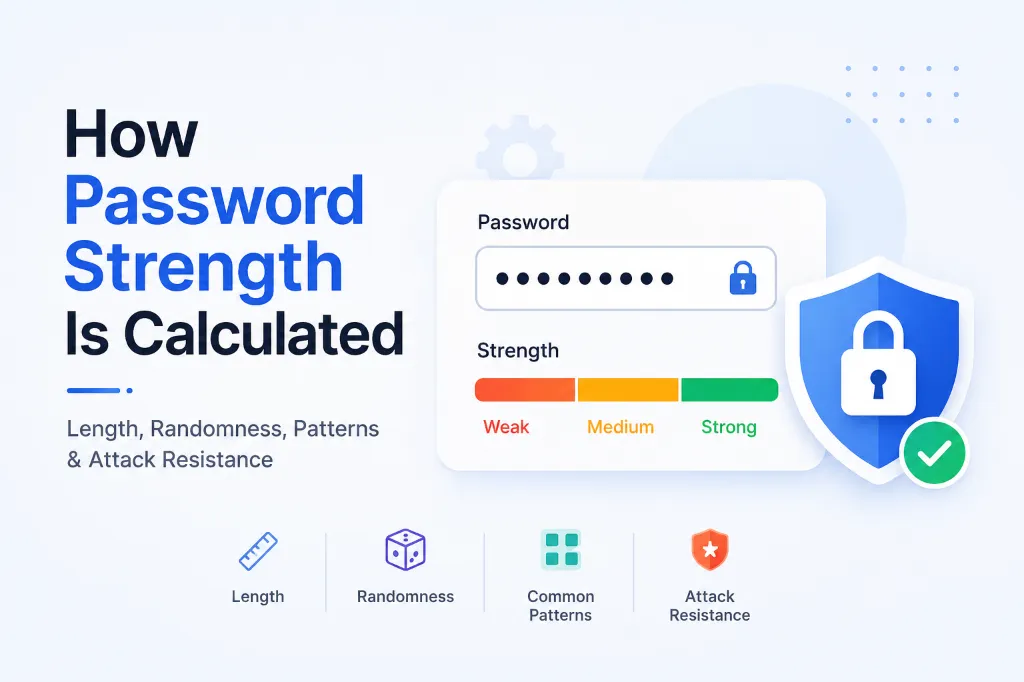
What Makes a Password Strong?
There are four simple things to look for when creating a password:
| Feature | What it means |
|---|---|
| Long | A longer password generally gives attackers more combinations to deal with |
| Random | It shouldn't follow an obvious pattern |
| Unique | It should only be used for one account |
| Private | Nobody else should know or have access to it |
The goal isn't to make your password look complicated.
The goal is to make it difficult for someone else to predict.
For example, consider a password like:
Jeel123
It may be easy to remember, but it contains a name and a very common number pattern.
A randomly generated password might look more like:
v7#Qm9!Lp2@Rx8$Zn4
The second type is much harder to predict because it isn't based on a person's name, birthday, favorite team, or another obvious piece of information.
Important: Never use a password from an article or example as your real password. Once an example is published publicly, it is no longer secret.
Why Short and Predictable Passwords Are Risky
Many people think that adding a number or a special character automatically makes a password secure.
For example:
Password123Password123!Summer2026Summer2026!India@123Admin@123
These passwords may look more complicated than a simple word, but they still follow patterns that are easy to anticipate.
Attackers can use automated systems to test large numbers of common passwords and previously exposed login information. They don't necessarily need to sit there and manually guess one password at a time.
That's why simply adding 123, !, or the current year isn't a good password strategy.
Don't Rely on Predictable Substitutions
Another common trick is replacing letters with symbols.
For example:
Password becomes P@ssw0rd!
At first glance, it looks much stronger.
But this type of substitution has been used for years. Replacing o with 0 or a with @ isn't a secret anymore.
The same problem happens with passwords like:
Summer2026!
You may have uppercase letters, lowercase letters, numbers, and a symbol, but the underlying pattern is still predictable.
Making a password look complicated isn't the same as making it unpredictable.
How Long Should a Strong Password Be?
Password length is one of the most important parts of password security.
Generally, a longer password gives an attacker more possibilities to deal with. This is why modern security guidance encourages websites to support long passwords and passphrases.
There isn't one magic number that makes a password impossible to guess.
Instead of focusing only on a minimum number of characters, think about the overall password.
If you're using a password generator and storing the result in a password manager, you can use a much longer password without worrying about remembering it.
For passwords you actually need to remember, a long passphrase can sometimes be easier.
For example, several unrelated words can be easier to remember than:
K7!vQ2#xR9$pL4@z
The important thing is to avoid obvious phrases, song lyrics, famous quotes, or information that is connected to your life.
The Easiest Way to Create a Strong Password
Let's be realistic.
Most people don't want to sit down and invent a different 20-character password for every website they use.
And they shouldn't have to.
This is where a strong password generator becomes useful.
A password generator creates a random password for you instead of making you come up with one yourself.
A Simple Process
Creating a strong password can be as simple as:
1. Open a password generator.
2. Choose the password length.
3. Select the character types you want.
4. Generate a password.
5. Copy it into your password manager.
6. Use it for only one account.
7. Turn on multi-factor authentication if the website supports it.
That's it.
You don't need to spend several minutes trying to invent a clever password.
In fact, trying to create a clever password yourself can sometimes make it weaker because you'll naturally use things that are familiar to you.
A random password generator removes that problem.
Password Generator vs. Creating Your Own Password
You can create passwords manually, but there is one obvious problem.
Humans aren't very good at creating truly random passwords.
We naturally choose things that mean something to us.
For example:
- Your pet's name
- Your birthday
- Your favorite sports team
- Your company name
- Your hometown
- Your favorite movie
- A memorable year
- Your children's names
These things make passwords easier to remember, but they can also make them easier to predict.
Here's a simple comparison:
| Method | Randomness | Easy to Remember | Recommended |
|---|---|---|---|
| Personal password | Low | Very easy | No |
| Manually created random password | Medium | Difficult | Sometimes |
| Random password generator | High | Difficult | Yes |
| Password manager generator | High | Easy to manage | Best option for most people |
The biggest advantage of a password generator is simple:
You don't have to be creative.
That's actually a good thing when it comes to password security.
What If You Need to Remember the Password?
Not every password has to be a random collection of letters, numbers, and symbols.
If there's a password you genuinely need to remember, a long passphrase can be an option.
A passphrase uses multiple words instead of one short word.
However, don't use something obvious like:
IlovePizza123!
It may be longer than Pizza123, but it still follows a predictable idea.
Instead, use several unrelated words that aren't connected to your personal life.
Also remember this important rule:
Never use a password example from an article, video, screenshot, or tutorial as your real password.
Once it's publicly available, anyone can see it.
Why Password Length Matters More Than You Think
People often focus too much on special characters.
They think a password is strong because it contains:
- One uppercase letter
- One lowercase letter
- One number
- One special character
But that doesn't automatically make it secure.
For example:
Password2026!
checks all those boxes.
It has uppercase and lowercase letters, numbers, and a special character.
But it's still an obvious password pattern.
Now compare that with a longer random password.
The random password is better because it is much harder to predict.
This is why you shouldn't focus only on checking character boxes.
Length and unpredictability matter.
A Simple Rule for Better Passwords
If you remember only one thing from this article, remember this:
> Long + Random + Unique = Better Password Security
And for important accounts, add:
> Password Manager + Multi-Factor Authentication = Extra Protection
You don't need a complicated cybersecurity system.
You just need to follow these basic rules consistently.
Never Use the Same Password Everywhere
This is one of the biggest password mistakes people make.
Imagine using the same password for:
- Your email
- Online shopping
- Cloud storage
- Work accounts
- Banking
Now imagine that one of those websites suffers a data breach and your password is exposed.
An attacker may try that same email and password combination on other websites.
This means one compromised account could potentially put several other accounts at risk.
That's why every important account should have its own password.
You don't need to memorize all those passwords yourself.
That's exactly where a password manager becomes useful.
Use a Password Manager
If you have ten, twenty, or even more online accounts, remembering a different password for every account can quickly become a headache.
That's why password managers are useful.
A password manager gives you one secure place to store your passwords. Many password managers can also generate random passwords for you, so you don't have to create them manually.
A simple routine looks like this:
Generate → Save → Autofill → Never Reuse
For example, instead of using something like:
MyAmazonPassword123!
and then changing it slightly for another website, you can create a completely different password for each account.
You don't need to remember those passwords yourself.
Why use a password manager?
A password manager can help you:
- Create random passwords
- Store unique passwords
- Autofill login details
- Avoid password reuse
- Keep track of many accounts
- Reduce the number of passwords you need to memorize
This makes strong password security much easier to maintain in everyday life.
The password manager itself becomes an important account, though, so protect it with a strong master password and multi-factor authentication if available.
Add Multi-Factor Authentication
A strong password is important, but it shouldn't always be your only layer of protection.
If an account supports multi-factor authentication, turn it on.
Multi-factor authentication, often called MFA or 2FA, asks for another form of verification after you enter your password.
For example, you might need:
- Your password
- A code from an authentication app
Or:
- Your password
- A security key
The exact method depends on the service.
The idea is simple: even if someone gets your password, they may still need the second verification step.
Which accounts should get MFA first?
If you don't want to enable it everywhere immediately, start with your most important accounts.
A good order is:
1. Primary email
2. Password manager
3. Banking and financial accounts
4. Work accounts
5. Cloud storage
6. Social media accounts
Your main email account deserves special attention.
Why?
Because your email is often used to reset passwords for other services. If someone gets control of your email, they may be able to request password resets for other accounts.
Password Security Mistakes to Avoid
Creating a strong password is only part of the job.
You can create an excellent password and still put your account at risk by handling it badly.
Here are some mistakes you should avoid.
1. Using Personal Information
Don't build passwords around information such as:
- Your name
- Birthday
- Phone number
- Pet's name
- Partner's name
- Address
- Company name
- Favorite sports team
You may think this information is private, but some of it could be available through social media or other public sources.
A password should not be a puzzle that someone can solve by learning more about you.
2. Reusing Passwords
Using one password across several accounts is convenient.
It's also risky.
If one website is compromised and your password becomes exposed, attackers may try the same password on other websites.
One password should protect one account.
That's the simple rule.
3. Adding the Current Year
Adding the current year to a password doesn't make it automatically strong.
For example:
Password2026!
or:
Summer2026!
Both follow patterns that are easy to understand.
The year changes.
The weakness doesn't.
4. Using Simple Patterns
Avoid passwords such as:
123456qwertyabcdef111111passwordPassword123
These are common patterns and should never be used for important accounts.
5. Sharing Passwords
Don't casually send your password through:
- Instagram messages
- SMS
- Discord
- Other chat applications
Even if you trust the person you're sending it to, you don't know where that message might eventually end up.
If someone needs access to an account, use the proper account-sharing or permission features when the service provides them.
6. Keeping Passwords in an Unprotected File
A file called:
passwords.txt
sitting on your desktop is not a secure password management system.
The same goes for keeping all your passwords in an ordinary spreadsheet without proper protection.
If someone gets access to your computer, they could potentially find everything in one place.
A proper password manager is a much safer approach.
When Should You Change a Password?
There's a common belief that everyone should change their passwords every 30 days.
That's not necessarily the best approach.
If you have a strong, unique password and there is no reason to believe it has been exposed, constantly changing it may not provide much benefit.
You should definitely change a password if:
- You think someone has seen it.
- You accidentally shared it.
- A website reports a security breach.
- You used the password on multiple websites.
- You entered it into a suspicious website.
- You discover that it is weak or predictable.
- You receive a warning that your credentials may have been exposed.
When you change it, don't simply make a small modification.
For example, don't change:
Summer2026!
to:
Summer2027!
That's still based on the same password.
Generate a completely new password instead.
What About Password Expiration?
Some workplaces and older systems require users to change passwords regularly.
If your employer requires this, follow the organization's security policy.
For personal accounts, however, changing a strong password on a fixed schedule isn't necessarily useful.
The more important question is:
Is there a reason to believe the password is no longer safe?
If the password has been exposed, reused, shared, or compromised, replace it.
If not, focus on keeping it unique and protected.
A Simple Password Security Checklist
You can use this quick checklist whenever you create or review a password.
- [ ] The password is reasonably long.
- [ ] It doesn't contain obvious personal information.
- [ ] It isn't a common password.
- [ ] It isn't reused on another account.
- [ ] You didn't copy it from a public example.
- [ ] It is stored safely.
- [ ] Multi-factor authentication is enabled when available.
If you can check all seven boxes, you're already avoiding many of the most common password mistakes.
A Practical Example
Let's say you're creating a new account for an online service.
You could create:
TechByJeel123!
It's easy to remember, but it also contains a name or brand and a predictable number pattern.
A better approach would be to open a password generator and create something random.
For example:
ExampleOnly7#vQ2!mL9@Rp4
Again, don't use this exact password.
It's only here to show what a randomly generated password might look like.
You would generate your own password, save it in your password manager, and use it only for that account.
Then enable MFA if the service supports it.
The whole process can take less than a minute.
What Makes a Password Generator Useful?
A password generator is useful because it removes much of the human decision-making from password creation.
Humans naturally create patterns.
We choose words we know.
We use our birthdays.
We add our favorite number.
We capitalize the first letter.
We put an exclamation mark at the end.
Then we add the current year.
These habits make passwords easier for us to remember, but they can also make them easier to predict.
A random password generator avoids many of these habits.
Instead of asking:
> "What password should I create?"
you can simply generate one.
That's often the better approach.
Don't Try to Make Your Password Clever
This may be the most useful lesson in this entire guide.
People often try to make passwords clever.
They take a phrase they already know and modify it.
For example:
MyDogIsRocky
might become:
MyD0g!sR0cky2026
It looks complicated.
But the basic idea is still based on something personal and predictable.
A randomly generated password doesn't need to be clever.
It just needs to be difficult to predict.
That's one of the biggest reasons a password generator can be better than trying to invent passwords yourself.
A Better Password Routine
If you want a simple system you can follow from now on, use these five steps.
Step 1: Generate
Use a password generator when creating a new account.
Step 2: Make It Unique
Never reuse that password on another website.
Step 3: Store It
Save the password in a trusted password manager instead of writing it down somewhere insecure.
Step 4: Enable MFA
Turn on multi-factor authentication whenever the service supports it.
Step 5: Replace Compromised Passwords
If a password is exposed, shared, or reused, replace it with a completely new password.
That's really all you need.
You don't need an extremely complicated security routine.
You just need to follow the basics consistently.
Related TechbyJeel Tools
If you're working on better online security, the Password Generator is the most useful tool to start with.
You can also use other TechbyJeel Tools when working with text, files, and everyday digital tasks.
Related tools:
- Password Generator - Password Generator
- Character Counter - Character Counter
The goal isn't to use as many tools as possible.
Use the right tool for the job and keep your workflow simple.
Frequently Asked Questions
What is the strongest type of password?
A long, randomly generated password that is unique to one account is generally a strong choice. Using a password manager makes it easier to create and store these passwords without memorizing them. For important accounts, adding multi-factor authentication provides another layer of protection.
How many characters should a strong password have?
There isn't one exact number that makes a password impossible to guess. In general, longer passwords are better, especially when they are randomly generated. NIST recommends that online services allow users to create long passwords and passphrases rather than forcing unnecessarily short limits.
Is a password generator safe to use?
A reputable password generator can be a useful way to create random passwords without relying on personal information. The important part is protecting the generated password afterward. Never publish, share, or reuse a password that was created for a real account.
Should every account have a different password?
Yes. Important accounts should have unique passwords. If you reuse a password and that password is exposed, an attacker may try it on your other accounts. A password manager makes it much easier to maintain different passwords without having to remember every one.
Should I change my password regularly?
You don't necessarily need to change a strong password on a fixed schedule unless a service or organization requires it. Change it when you believe it has been exposed, reused, shared, or involved in a breach. When changing it, create a completely new password instead of slightly modifying the old one.
Final Thoughts
Learning how to generate strong passwords isn't about creating passwords that simply look complicated. It's about creating passwords that are long, random, unique, and difficult for someone else to predict.
The easiest approach is to use a password generator, save each password in a password manager, and avoid using the same password across multiple accounts.
For important accounts, take one more step and enable multi-factor authentication. A few simple habits can make your everyday online security much stronger.
Ready to create a stronger password? Try the free Password Generator on TechbyJeel Tools and create a random password for your next account.
Trusted References
1. NIST Digital Identity Guidelines
NIST provides guidance on passwords, passphrases, authentication, and digital identity security.
https://pages.nist.gov/800-63-4/sp800-63b.html
2. OWASP Authentication Cheat Sheet
OWASP provides practical guidance for developers and organizations working with authentication and password security.
https://cheatsheetseries.owasp.org/cheatsheets/Authentication_Cheat_Sheet.html
3. Mozilla Password Security Guidance
Mozilla provides practical information about creating and managing stronger passwords.
https://support.mozilla.org/en-US/kb/password-strength
4. Mozilla Secure Password Generation
Mozilla also explains how its browser can generate secure passwords for users.
https://support.mozilla.org/en-US/kb/how-generate-secure-password-firefox