

How to Split Large PDF Files in Seconds for Free
Large PDF files can quickly become difficult to manage. Whether you're sending project reports, sharing eBooks, submitting assignments, or uploading documents to online portals, oversized PDFs often exceed file size limits or contain pages you don't actually need.
The good news is that you don't need expensive software or advanced technical skills to fix the problem. A free PDF Split tool lets you separate large documents into smaller, more manageable files in just a few clicks.
In this guide, you'll learn how to split large PDF files in seconds, when you should split a PDF, different splitting methods, and best practices for keeping your documents organized.
What Is a PDF Split Tool?
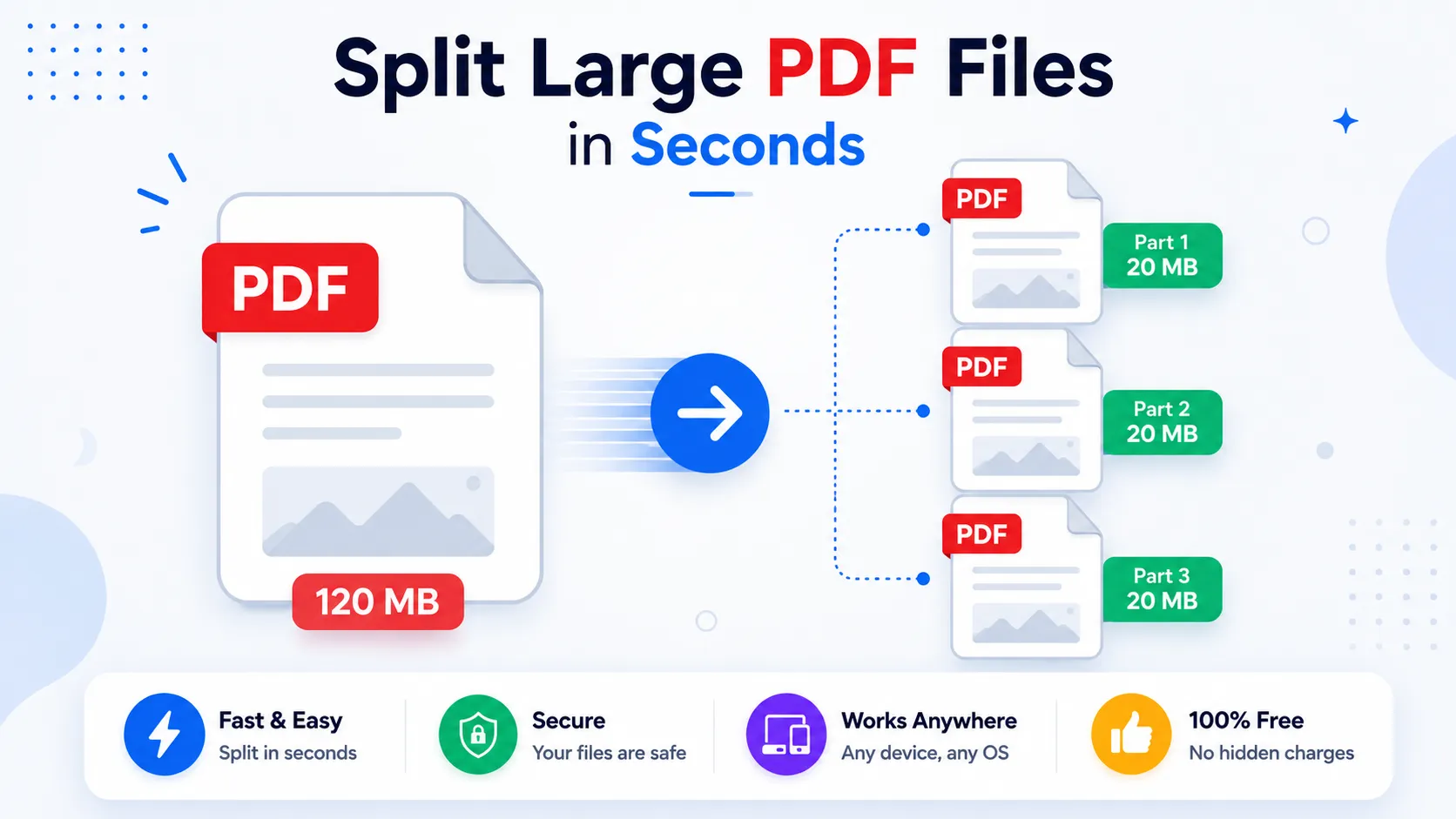
A PDF Split tool is an online utility that divides one PDF document into multiple smaller PDF files. You can split by page range, extract specific pages, or separate every page into an individual PDF without changing the original content or formatting.
Unlike editing software, a PDF splitter focuses only on separating pages, making it fast, lightweight, and beginner-friendly.
Why Split Large PDF Files?
Splitting a PDF isn't just about reducing file size. It also makes documents easier to organize, share, and edit.
Common reasons include:
- Sending only selected pages
- Meeting email attachment limits
- Uploading documents to websites
- Organizing lengthy reports
- Sharing chapters from an eBook
- Separating invoices
- Extracting contracts
- Creating smaller archives
- Improving document management
Real-World Examples
| Situation | Why Split the PDF? |
|---|---|
| College assignment | Submit only required pages |
| Job application | Upload resume without extra certificates |
| Business proposal | Share only relevant sections |
| Legal document | Separate signed pages |
| Medical records | Share selected reports |
| Financial statements | Extract monthly reports |
Benefits of Splitting PDF Files
Using a dedicated PDF Split tool offers several advantages.
Faster File Sharing
Large PDFs can take longer to upload and download. Smaller files are quicker to send through email, messaging apps, or cloud storage.
Easier Organization
Instead of scrolling through hundreds of pages, you can create separate PDFs for each chapter, project, or department.
Better Collaboration
Different team members often need different sections of the same document.
Splitting allows everyone to receive only the pages relevant to their work.
Reduced Upload Errors
Many websites limit upload sizes.
Smaller PDF files reduce the chances of failed uploads or timeout errors.
Improved Productivity
Finding information becomes much faster when documents are neatly separated.
How to Split Large PDF Files in Seconds
The process is simple and works on any modern browser.
Step 1: Open the PDF Split Tool
Visit:
No software installation is required.
Step 2: Upload Your PDF
Click the upload button or drag and drop your document into the tool.
Most browsers support drag-and-drop functionality for faster uploads.
Step 3: Choose Your Splitting Method
Depending on your needs, you can:
- Split every page
- Split by page range
- Extract selected pages
- Separate odd pages
- Separate even pages
Choose the option that best matches your document.
Step 4: Process the PDF
Click the Split PDF button.
The tool processes the document in seconds.
Step 5: Download Your Files
Download each newly created PDF individually or as a compressed archive if available.
Your original document remains unchanged.
Different Ways to Split a PDF
Not every document needs the same approach.
Here are the most common methods.
Split Every Page
Each page becomes its own PDF.
Best for:
- Scanned documents
- Certificates
- Forms
- Individual reports
Split by Page Range
Separate documents into logical sections.
Example:
- Pages 1-20
- Pages 21-40
- Pages 41-60
Ideal for:
- Books
- Manuals
- Annual reports
- Research papers
Extract Specific Pages
Need only a few pages?
Simply select:
- Page 3
- Page 7
- Page 12
The tool creates a new PDF containing only those pages.
Separate Odd and Even Pages
Useful for:
- Double-sided scans
- Printing workflows
- Document reconstruction
Is Splitting a PDF Safe?
Security is one of the biggest concerns when uploading documents online.
A trustworthy PDF Split tool should:
- Use encrypted file transfers (HTTPS)
- Automatically delete uploaded files after processing
- Avoid storing personal documents
- Protect your data throughout the process
For sensitive business or legal documents, always choose tools that clearly explain their privacy practices.
> Tip: Before uploading confidential files, check that the website uses HTTPS and has a transparent privacy policy.
Online PDF Splitter vs Desktop Software
| Feature | Online PDF Splitter | Desktop Software |
|---|---|---|
| Installation | Not required | Required |
| Works on mobile | Yes | Usually no |
| Automatic updates | Yes | Manual |
| Accessible anywhere | Yes | Limited to one device |
| Learning curve | Very easy | Moderate |
| Cost | Often free | Usually paid |
For most everyday tasks, an online PDF Split tool is the fastest and most convenient option.
Tips for Better PDF Management
Splitting files is just one part of staying organized.
Here are a few practical tips:
- Use clear and descriptive file names.
- Organize PDFs into folders by project or client.
- Compress large PDFs before sharing when appropriate.
- Keep backup copies of important documents.
- Combine related PDFs after editing if needed.
- Store files securely using trusted cloud storage services.
Make Your PDF Workflow Even Easier
After splitting your document, you may also find these free tools helpful:
- PDF Merge - Combine multiple PDF files into one document: PDF Merge Tool
- PDF Compressor - Reduce file size without noticeable quality loss: PDF Compressor Tool
- PDF to Word - Convert PDFs into editable Word documents: PDF to Word Converter
- Image Compressor - Optimize images before adding them to PDFs: Image Compressor Tool
These tools work together to simplify document management and improve productivity.
Common Mistakes to Avoid When Splitting PDFs
Even though splitting a PDF is simple, a few common mistakes can create unnecessary work later.
1. Splitting the Wrong Page Range
Always double-check the page numbers before processing the file. Accidentally excluding or duplicating pages can cause confusion, especially for legal, financial, or academic documents.
2. Renaming Files Poorly
Avoid generic names like:
- Document1.pdf
- Final.pdf
- New.pdf
Instead, use descriptive names such as:
- Invoice-January-2026.pdf
- Chapter-3.pdf
- Employee-Handbook-Section-A.pdf
This makes documents much easier to find later.
3. Forgetting to Verify the Output
After downloading the split files, quickly open each one to confirm:
- All required pages are included.
- The pages are in the correct order.
- Text, images, and formatting display correctly.
Spending a few seconds checking the output can prevent mistakes when sharing important documents.
4. Uploading Sensitive Files to Untrusted Websites
If your PDF contains confidential information, use a trusted service that clearly explains how uploaded files are handled and deleted.
When Should You Split a PDF Instead of Compressing It?
People often confuse splitting and compressing PDFs, but they solve different problems.
| If you want to... | Use PDF Split | Use PDF Compressor |
|---|---|---|
| Share only certain pages | ✅ | ❌ |
| Reduce file size | ❌ | ✅ |
| Organize long documents | ✅ | ❌ |
| Meet upload size limits | Sometimes | ✅ |
| Extract chapters or sections | ✅ | ❌ |
| Improve storage efficiency | ❌ | ✅ |
Tip: You can also use both tools together. Split the document first, then compress each file if you need even smaller uploads.
Why Choose TechbyJeel Tools?
Our PDF Split tool is designed to make document management fast and hassle-free.
Key Features
- Free to use
- No software installation
- Beginner-friendly interface
- Works on Windows, macOS, Linux, Android, and iPhone
- Fast processing
- Maintains original formatting
- Secure HTTPS connection
- Accessible from any modern browser
Whether you're a student submitting assignments, a professional sharing reports, or a business organizing documents, our tool helps you split PDFs in just a few clicks.
> Ready to organize your documents?
>
> Try our PDF Split tool today at PDF Split Tool and simplify your workflow in seconds.
Helpful Resources
If you're working with PDFs regularly, these trusted resources provide additional guidance:
- Adobe PDF Overview (opens in a new tab): https://www.adobe.com/acrobat/about-adobe-pdf.html
- ISO 32000 PDF Standard (opens in a new tab): https://www.iso.org/standard/75839.html
- Mozilla MDN - File API (opens in a new tab): https://developer.mozilla.org/docs/Web/API/File
- Google Drive Help (opens in a new tab): https://support.google.com/drive
- Microsoft Support - PDF Help (opens in a new tab): https://support.microsoft.com/
These resources explain PDF technology, file handling, and document management best practices.
Conclusion
Learning how to split large PDF files is one of the easiest ways to make document management faster and more organized. Instead of sharing one oversized file, you can send only the pages that matter, improving collaboration and reducing upload issues.
A reliable PDF Split tool lets you separate pages in seconds without installing software or compromising document quality. Whether you're working with reports, contracts, invoices, study materials, or presentations, splitting PDFs saves both time and storage space.
If you frequently work with digital documents, explore more free tools on TechbyJeel Tools. You can also use our PDF Merge, PDF Compressor, and PDF to Word tools to build a complete and efficient PDF workflow.
Frequently Asked Questions (FAQs)
1. Can I split a PDF without installing software?
Yes. An online PDF Split tool lets you upload your document, choose the pages or page ranges you want, and download the separated files directly from your browser. No installation or technical knowledge is required.
2. Will splitting a PDF reduce its quality?
No. Splitting a PDF only separates pages into new files. The original text, images, fonts, and formatting remain unchanged, provided the tool processes the document correctly.
3. Is it safe to split PDF files online?
Yes, if you use a trusted website that encrypts file transfers with HTTPS and automatically deletes uploaded files after processing. Always review the site's privacy policy before uploading confidential documents.
4. Can I extract only one page from a PDF?
Absolutely. Most PDF Split tools allow you to select a single page or multiple specific pages, creating a new PDF that contains only your chosen content.
5. What's the difference between splitting and merging PDFs?
Splitting divides one PDF into multiple smaller files, while merging combines multiple PDF files into a single document. They are complementary tools used for different document management tasks.