

How to Merge PDF Files Online for Free
PDF files are one of the most common document formats used for business, education, legal paperwork, and personal records. However, working with multiple PDF documents can quickly become inconvenient. Whether you're submitting assignments, sharing reports, or organizing invoices, having everything in a single PDF makes life much easier.
The good news is that you don't need expensive software or technical knowledge. You can merge PDF files online for free directly from your browser in just a few minutes. In this guide, you'll learn how PDF merging works, when to use it, best practices, and how to safely combine your documents using TechbyJeel Tools.
Merge PDF Files Online for Free in Minutes
Quick Answer:
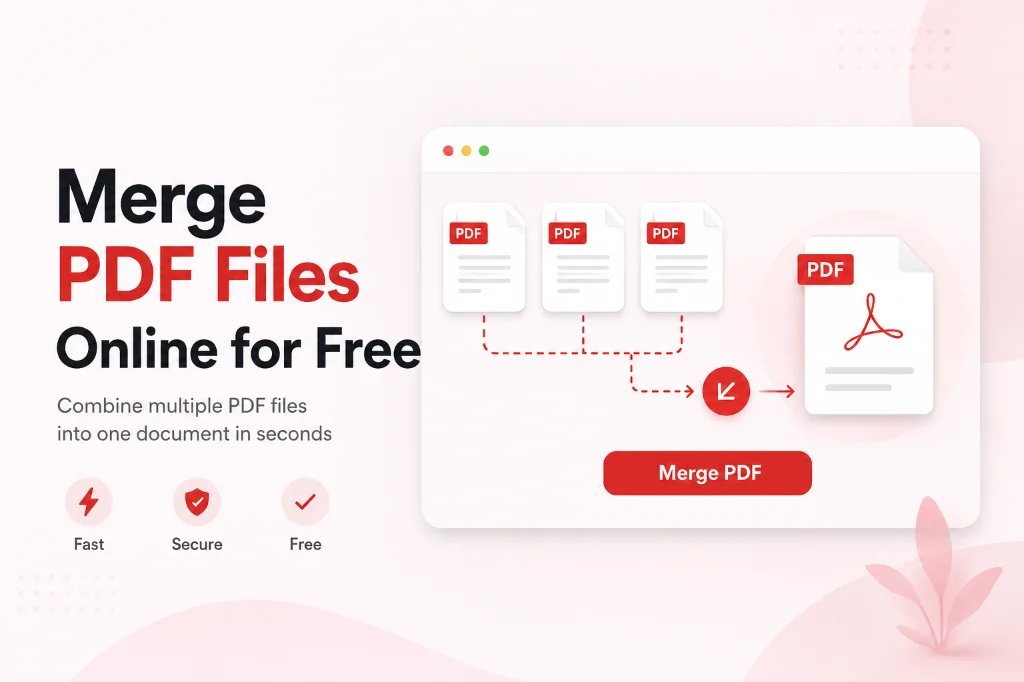
To merge PDF files online for free, upload your PDF documents to a trusted online PDF merger, arrange them in your preferred order, click the Merge button, and download the combined PDF. The entire process usually takes less than a minute and requires no software installation.
Why Merge PDF Files?
Instead of sending multiple attachments, merging them into a single document keeps everything organized and easier to manage.
People merge PDFs every day for many reasons:
- Job applications
- School assignments
- Business reports
- Financial statements
- Legal documents
- Project documentation
- Contracts
- User manuals
- Research papers
- Client presentations
For example, if you're applying for a job, you may need to combine:
- Resume
- Cover Letter
- Portfolio
- Certifications
Sending one organized PDF looks far more professional than attaching four separate files.
Benefits of Using an Online PDF Merger
Using an online PDF merger provides several advantages over desktop software.
| Feature | Online PDF Merger | Desktop Software |
|---|---|---|
| Free to use | ✅ | Often Paid |
| Installation | ❌ | Required |
| Works on Mobile | ✅ | Limited |
| Fast Processing | ✅ | Depends |
| Browser Based | ✅ | No |
| Cross Platform | ✅ | Limited |
Some of the biggest benefits include:
- No software installation
- Works on Windows, macOS, Linux, Android, and iPhone
- Easy drag-and-drop interface
- Saves time
- Beginner-friendly
- Accessible from anywhere
- Supports multiple PDF files
- Fast downloads
How to Merge PDF Files Online for Free Using TechbyJeel Tools
Merging PDFs only takes a few simple steps.
Step 1: Open the PDF Merge Tool
Visit the PDF Merge tool on TechbyJeel Tools.
Step 2: Upload Your PDF Files
Click Choose Files or drag your PDF documents into the upload area.
You can upload:
- Two PDFs
- Three PDFs
- Multiple PDF documents
Most users combine:
- Reports
- Invoices
- Contracts
- Notes
- Presentations
Step 3: Arrange the File Order
The order matters.
Simply drag and reorder the PDFs before merging.
Example:
1. Cover Page
2. Introduction
3. Main Report
4. Appendix
This ensures your final PDF appears exactly as intended.
Step 4: Click Merge
Press the Merge PDF button.
The tool combines every uploaded document into a single PDF while preserving the original formatting.
Depending on file size, this usually takes only a few seconds.
Step 5: Download the Combined PDF
Once processing is complete:
- Preview your merged document if available.
- Download the final PDF.
- Share it via email or cloud storage.
- Print it if needed.
Your new PDF is ready to use immediately.
Common Use Cases for PDF Merging
People across different industries rely on PDF merging every day.
Students
Students often combine:
- Assignments
- Research papers
- Cover pages
- References
- Lab reports
Instead of uploading five separate files, one organized PDF is easier for teachers to review.
Businesses
Businesses merge:
- Financial reports
- Monthly statements
- Contracts
- Purchase orders
- Meeting notes
- Sales presentations
Keeping related documents together improves collaboration and record management.
Freelancers
Freelancers frequently send:
- Project proposals
- Invoices
- Contracts
- Portfolio samples
A single professional PDF leaves a stronger impression on clients.
HR Teams
Human Resources departments often merge:
- Employee forms
- Offer letters
- Identity documents
- Policy acknowledgments
This simplifies employee onboarding and digital record keeping.
Is It Safe to Merge PDF Files Online?
Security is one of the biggest concerns when uploading documents online.
A trustworthy PDF merger should:
- Use HTTPS encryption.
- Process files securely.
- Automatically delete uploaded files after processing.
- Avoid storing personal documents longer than necessary.
- Clearly explain its privacy policy.
Best Practices Before Uploading Sensitive PDFs
Follow these tips to protect your information:
- Remove confidential pages if possible.
- Double-check the website URL.
- Avoid using public Wi-Fi for sensitive documents.
- Download your merged file immediately.
- Delete local temporary copies if they contain confidential information.
If you're working with highly sensitive legal, medical, or financial records, verify the service's privacy policy before uploading.
Tips for Better PDF Organization
Merging documents is only part of creating a professional PDF. A little preparation goes a long way.
Here are a few practical tips:
- Rename files before uploading so they're easy to identify.
- Place the most important document first.
- Add a cover page for business reports.
- Ensure all pages are oriented correctly.
- Remove duplicate pages before merging.
- Compress large PDFs after merging for easier sharing using PDF Compressor.
- Split unnecessary pages with PDF Split before combining documents.
- Convert Word files first using Word to PDF if needed.
Related TechbyJeel Tools
To manage PDFs more efficiently, explore these free tools:
These tools work together to simplify your document workflow without requiring any software installation.
Common Mistakes to Avoid When Merging PDFs
Although merging PDF files is simple, a few common mistakes can lead to formatting issues or confusion.
1. Uploading Files in the Wrong Order
Always review the file sequence before clicking Merge. Rearranging pages afterward may require additional editing.
2. Mixing Different Page Sizes
If one document is A4 and another is Letter size, the final PDF may look inconsistent. Whenever possible, use the same page size across all documents.
3. Forgetting to Review the Final PDF
After downloading the merged file:
- Check page order.
- Ensure no pages are missing.
- Verify images and text display correctly.
- Confirm hyperlinks still work if applicable.
4. Uploading Password-Protected PDFs
Many online PDF tools cannot merge encrypted PDFs until you remove the password.
5. Ignoring File Size
Very large PDFs can take longer to upload and download. If your merged document becomes too large, reduce its size using PDF Compressor.
PDF Merge vs PDF Split
These two tools solve different problems.
| Feature | PDF Merge | PDF Split |
|---|---|---|
| Combine multiple PDFs | ✅ | ❌ |
| Separate one PDF into multiple files | ❌ | ✅ |
| Organize reports | ✅ | ❌ |
| Extract specific pages | ❌ | ✅ |
| Create one document for sharing | ✅ | ❌ |
| Remove unnecessary pages | ❌ | ✅ |
Use PDF Merge when you want one organized document.
Use PDF Split when you only need certain pages from a larger PDF.
Does PDF Merging Affect File Quality?
No.
A reliable PDF merger combines documents without reducing text clarity or image quality.
However, keep in mind:
- Merging does not compress PDFs.
- It does not improve scan quality.
- It preserves the original document content.
If your PDF is too large after merging, use PDF Compressor to reduce the file size while maintaining readable quality.
Browser Compatibility
One advantage of an online PDF merger is that it works directly in your browser.
Supported browsers include:
- Google Chrome
- Microsoft Edge
- Mozilla Firefox
- Safari
- Brave
- Opera
It also works across:
- Windows
- macOS
- Linux
- Android
- iPhone
- iPad
- Chromebook
No installation or browser extension is required.
Troubleshooting Common PDF Merge Issues
If your PDFs won't merge, try these solutions.
| Problem | Possible Cause | Solution |
|---|---|---|
| Upload fails | Large file size | Compress the PDF first |
| Merge button disabled | Unsupported file | Verify the file is a PDF |
| Pages out of order | Incorrect arrangement | Drag files into the correct order |
| Download won't start | Browser issue | Refresh the page and try again |
| Password-protected file | Encryption enabled | Remove the password before uploading |
Most issues can be resolved in a few minutes without advanced technical knowledge.
Best Practices for Managing PDF Documents
To keep your documents organized and easy to share:
- Use descriptive filenames.
- Keep related documents together.
- Archive old versions separately.
- Merge only finalized documents.
- Compress large files before emailing.
- Back up important PDFs to cloud storage.
- Review the final PDF before sending.
These simple habits save time and help maintain professional document management.
Why Choose TechbyJeel Tools?
At TechbyJeel Tools, our goal is to make everyday document tasks simple and accessible.
With our free PDF tools, you can:
- Merge PDFs quickly.
- Split large documents.
- Compress PDFs for faster sharing.
- Convert Word documents to PDF.
- Convert PDFs back to Word.
Everything runs directly in your browser, so there's nothing to install.
Related Tools
You may also find these helpful:
Helpful Resources
If you'd like to learn more about PDF standards, browser security, and document handling, these trusted resources are worth exploring (open them in a new tab):
- Adobe PDF Overview: https://www.adobe.com/acrobat/about-adobe-pdf.html
- Mozilla HTTPS Documentation: https://developer.mozilla.org/docs/Web/HTTP/Overview
- W3C Web Standards: https://www.w3.org/
- Google Safe Browsing: https://safebrowsing.google.com/
- OWASP Secure File Upload Guidelines: https://owasp.org/
Ready to Combine Your PDF Files?
Stop juggling multiple documents.
Use the PDF Merge tool on TechbyJeel Tools to combine your PDF files into one organized document in just a few clicks. It's fast, free, and works directly in your browser.
Conclusion
Learning how to merge PDF files online for free is one of the easiest ways to organize documents for work, school, or personal use. With a browser-based tool, you can combine multiple PDFs into a single file in minutes without installing any software.
Whether you're creating a report, submitting an application, or sharing project documents, merging PDFs helps present your information in a cleaner and more professional format. Following the tips in this guide will help you avoid common mistakes and keep your documents organized.
If you're looking for a quick and reliable solution, explore the free PDF Merge tool on TechbyJeel Tools. You can also browse related tools like PDF Split, PDF Compressor, and Word to PDF to simplify your entire document workflow.
Ready to get started? Visit TechbyJeel Tools today and merge your PDF files online for free.
Frequently Asked Questions
1. Can I merge PDF files online for free without installing software?
Yes. Browser-based PDF merger tools allow you to upload multiple PDF files, arrange them in the desired order, merge them, and download a single PDF without installing any applications. This works on desktop and mobile devices.
2. Is it safe to merge PDF files online?
It can be, provided you use a trusted service that uses HTTPS encryption, processes files securely, and deletes uploaded documents after processing. Always review the provider's privacy policy before uploading sensitive information.
3. Can I merge more than two PDF files?
Yes. Most online PDF merge tools support combining multiple PDF files into one document. You can usually reorder the files before merging to ensure the final document appears exactly as you want.
4. Will merging PDF files reduce their quality?
No. PDF merging simply combines existing documents and does not normally reduce image quality or text clarity. If the merged file is too large, you can compress it afterward using a PDF compression tool.
5. Can I merge PDFs on my phone?
Yes. Most modern PDF merge tools work directly in mobile browsers on Android and iPhone, allowing you to upload, merge, and download PDF files without installing additional software.