

Best Ways to Reduce PDF File Size Without Losing Quality
Large PDF files are one of the most common reasons documents fail to upload, exceed email attachment limits, or take too long to share. Whether you're sending a resume, business proposal, research paper, or scanned document, reducing file size can make the process much smoother.
The good news is that you don't have to sacrifice readability or image clarity. Modern compression techniques can significantly reduce PDF file size while keeping text sharp and images clear.
In this guide, you'll learn the best ways to reduce PDF file size without losing quality, understand how PDF compression works, and discover practical tips for creating smaller, more efficient documents.
What Does It Mean to Reduce PDF File Size Without Losing Quality?
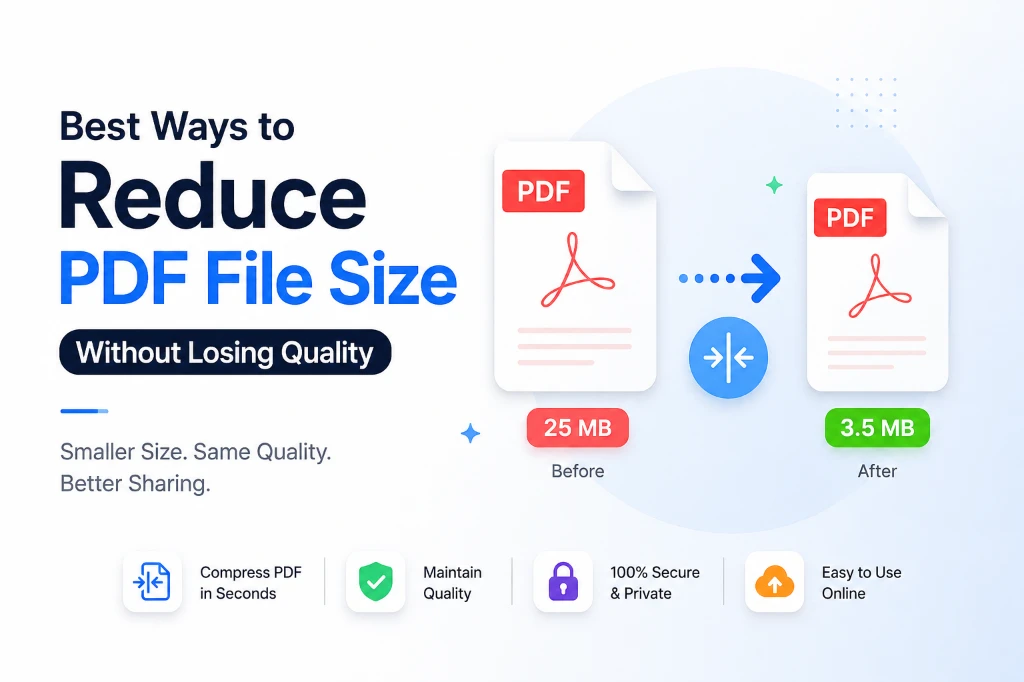
Reducing PDF file size without losing quality means optimizing the document so it occupies less storage while preserving readable text, clear images, and the original layout. Modern PDF compression removes unnecessary data instead of noticeably lowering visual quality.
Many people assume that compression always reduces quality. In reality, PDF optimization can eliminate redundant information, compress embedded images intelligently, and reorganize document data without affecting how the file looks.
Benefits of Smaller PDF Files
- Faster uploads
- Quicker downloads
- Easier email sharing
- Reduced cloud storage usage
- Better website performance
- Faster document loading on mobile devices
Why PDF Files Become So Large
Several factors contribute to oversized PDF documents.
| Cause | Effect on File Size |
|---|---|
| High-resolution images | Very High |
| Multiple scanned pages | High |
| Embedded fonts | Medium |
| Uncompressed graphics | High |
| Large color images | High |
| Duplicate objects | Medium |
| Metadata and hidden information | Low |
Understanding these causes helps you choose the right compression method.
Best Ways to Reduce PDF File Size Without Losing Quality
1. Use a Reliable PDF Compressor
The easiest and safest method is using a dedicated PDF compression tool.
A quality PDF compressor automatically analyzes your document and removes unnecessary data while preserving readability.
This method is ideal for:
- Office documents
- Reports
- Contracts
- eBooks
- Assignments
- Invoices
Recommended Tool
👉 TechbyJeel PDF Compressor
Internal Link:
Simply upload your PDF, let the tool optimize it, and download the compressed version within seconds.
Why This Works
Modern compression algorithms can:
- Compress images intelligently
- Remove duplicate resources
- Optimize internal PDF structure
- Preserve fonts
- Keep page layouts unchanged
2. Optimize Images Before Creating the PDF
Images are usually responsible for most of a PDF's size.
Instead of compressing the PDF afterward, optimize the images first.
Good image formats include:
- JPEG
- WebP
- Optimized PNG
If you're creating reports, brochures, or presentations, reducing image sizes beforehand can dramatically decrease the final PDF size.
Related Tool
Image Compressor
Example
Instead of using:
- 6000 × 4000 photos
Use:
- 1920 × 1080 optimized images
The visual difference is often negligible, while the file size reduction can be substantial.
3. Choose the Right Scan Resolution
Scanned documents often become unnecessarily large.
For most purposes:
| Document Type | Recommended DPI |
|---|---|
| Text Documents | 150 DPI |
| Office Files | 200 DPI |
| Contracts | 200 DPI |
| Forms | 150 DPI |
| Photos | 300 DPI |
Scanning everything at 600 DPI usually creates oversized files without providing noticeable benefits.
4. Remove Unnecessary Pages
Many PDFs contain:
- Blank pages
- Duplicate pages
- Draft versions
- Unused appendices
Deleting unnecessary pages immediately reduces file size.
For example:
A 120-page report containing 20 blank pages can often shrink significantly after cleanup.
5. Convert Color Documents to Grayscale (When Appropriate)
If your PDF contains mostly text, printing in grayscale instead of full color can dramatically reduce its size.
Ideal examples include:
- Reports
- Books
- Research papers
- Manuals
- Forms
Avoid grayscale for:
- Marketing brochures
- Product catalogs
- Photography portfolios
How PDF Compression Actually Works
Many users wonder whether compression "removes" information.
In most cases, a PDF compressor performs several optimizations:
- Compresses embedded images
- Removes duplicate objects
- Optimizes embedded fonts
- Cleans metadata
- Rebuilds the internal PDF structure
- Eliminates unnecessary white space data
The result is a smaller document that looks almost identical to the original.
Lossless vs. Lossy PDF Compression
| Feature | Lossless | Lossy |
|---|---|---|
| Text Quality | Excellent | Excellent |
| Image Quality | Preserved | Slightly Reduced |
| File Size Reduction | Moderate | High |
| Suitable for Legal Documents | Yes | Usually |
| Suitable for Printing | Yes | Depends |
| Best For | Business files | Large scanned PDFs |
For most business documents, lossless compression offers the best balance between quality and file size.
Tips to Maintain Quality While Compressing PDFs
Follow these best practices for the best results:
- Start with high-quality source files.
- Avoid compressing the same PDF multiple times.
- Optimize images before converting them into a PDF.
- Use lossless compression whenever possible.
- Remove unnecessary pages before compression.
- Choose the correct scan resolution.
- Keep fonts embedded only when necessary.
- Always preview the compressed PDF before sharing.
Common Mistakes to Avoid
Compressing an Already Compressed PDF
Repeated compression may gradually reduce image quality without providing significant file size savings.
Using Extremely Low Image Quality
Reducing images too aggressively can make charts, diagrams, and scanned text difficult to read.
Scanning Everything at Maximum Resolution
Higher DPI does not always mean better quality. It often results in unnecessarily large files.
Quick Comparison of PDF Size Reduction Methods
| Method | Difficulty | Quality | Space Saved |
|---|---|---|---|
| PDF Compressor | Easy | Excellent | High |
| Optimize Images | Medium | Excellent | Very High |
| Lower Scan DPI | Easy | Excellent | High |
| Remove Extra Pages | Easy | Perfect | Medium |
| Convert to Grayscale | Easy | Very Good | Medium |
| Remove Metadata | Easy | Excellent | Low |
Ready to shrink your PDFs?
Instead of emailing oversized documents or struggling with upload limits, try the TechbyJeel PDF Compressor to optimize your files in just a few clicks.
You can also explore related tools:
- Image Compressor:
Image Compressor - PDF Merge:
PDF Merge - PDF Split:
PDF Split - Image to PDF Converter:
Image to PDF Converter
Best Use Cases for PDF Compression
Compressing PDFs is useful in many everyday situations. Here are some common examples where a smaller file size improves speed, sharing, and storage.
| Use Case | Why Compression Helps |
|---|---|
| Email Attachments | Meets email size limits and sends faster |
| Job Applications | Upload resumes and portfolios without errors |
| Online Forms | Speeds up submissions on government and business portals |
| Cloud Storage | Saves storage space on Google Drive, OneDrive, and Dropbox |
| Websites | Improves download speed and user experience |
| Business Documents | Makes contracts, invoices, and reports easier to share |
| Education | Helps students and teachers upload assignments quickly |
How to Compress a PDF Using TechbyJeel PDF Compressor
Reducing your PDF size takes only a few steps.
1. Open the PDF Compressor tool.
2. Upload your PDF file.
3. Let the tool analyze and optimize the document.
4. Download the compressed PDF.
5. Preview the file to ensure everything looks correct.
Most documents can be compressed in seconds while maintaining excellent readability.
> Tip: If your PDF contains large images, compress the images first using the Image Compressor (Image Compressor) before creating the PDF for even better results.
When You Should Avoid Heavy Compression
While compression is helpful, some documents should only be compressed lightly to preserve maximum quality.
Examples include:
- High-resolution print files
- Architectural drawings
- Medical images
- Photography portfolios
- Graphic design proofs
- Legal documents that require fine detail
For these files, choose lossless compression whenever possible.
PDF Compression Best Practices
To get the best balance between file size and quality, follow these recommendations:
- Use high-quality originals. Better source files compress more effectively.
- Compress only once. Repeated compression may reduce image quality.
- Optimize images before converting them to PDF.
- Remove unnecessary pages before compression.
- Use grayscale for text-only documents.
- Select an appropriate scan resolution (150-300 DPI for most documents).
- Review the final PDF before sharing or printing.
These simple habits help maintain document quality while reducing storage requirements.
Related TechbyJeel Tools
If you regularly work with PDF files, these free tools can save you time:
| Tool | Purpose |
|---|---|
| PDF Compressor | Reduce PDF file size while maintaining quality |
| PDF Merge | Combine multiple PDF files into one document |
| PDF Split | Extract or separate pages from a PDF |
| Image Compressor | Optimize images before converting them to PDF |
| Image to PDF Converter | Convert JPG, PNG, or WebP images into PDF files |
Explore these tools to simplify your document workflow and improve productivity.
Trusted Resources for PDF Standards and Optimization
For additional information about PDF technology and web performance, refer to these authoritative resources:
- Adobe - https://www.adobe.com/acrobat/about-adobe-pdf.html (opens in a new tab)
- ISO PDF Standards - https://www.iso.org/standard/75839.html (opens in a new tab)
- Mozilla MDN - https://developer.mozilla.org/ (opens in a new tab)
- Google PageSpeed Insights - https://pagespeed.web.dev/ (opens in a new tab)
These sources provide reliable information about document formats, optimization, and performance.
Conclusion
Knowing the best ways to reduce PDF file size without losing quality can save time, improve productivity, and make sharing documents much easier. Whether you're sending reports, resumes, contracts, or study materials, smart compression keeps your files lightweight without sacrificing readability.
The most effective approach combines good document preparation with a reliable PDF compression tool. Optimizing images, choosing the right scan settings, and removing unnecessary content can dramatically reduce file size while preserving quality.
If you're looking for a quick and free solution, try the TechbyJeel PDF Compressor to optimize your documents in seconds. You can also explore our other PDF and image tools to streamline your daily workflow.
Ready to shrink your PDFs? Visit TechbyJeel Tools and start compressing your files for free.
Frequently Asked Questions
1. Can I reduce PDF file size without losing quality?
Yes. Modern PDF compression tools use intelligent optimization techniques such as image optimization, font optimization, and removal of unnecessary metadata. In most cases, the document looks identical while the file size becomes significantly smaller.
2. What is the best way to compress a PDF?
The easiest and safest method is to use a reliable PDF compressor. It automatically analyzes your document and applies the best compression settings while preserving text clarity, images, and formatting.
3. Does PDF compression reduce image quality?
Not always. Lossless compression preserves the original quality, while lossy compression slightly reduces image quality to achieve greater file size reduction. For business documents, lossless compression is usually the preferred option.
4. Why is my PDF still large after compression?
Some PDFs contain high-resolution images, embedded fonts, or scanned pages that cannot be compressed much further without affecting quality. Optimizing images before creating the PDF often produces better results.
5. Is it safe to compress PDF files online?
Yes, provided you use a trusted PDF compression service that securely processes files and does not permanently store uploaded documents. Always review the provider's privacy policy before uploading sensitive files.