

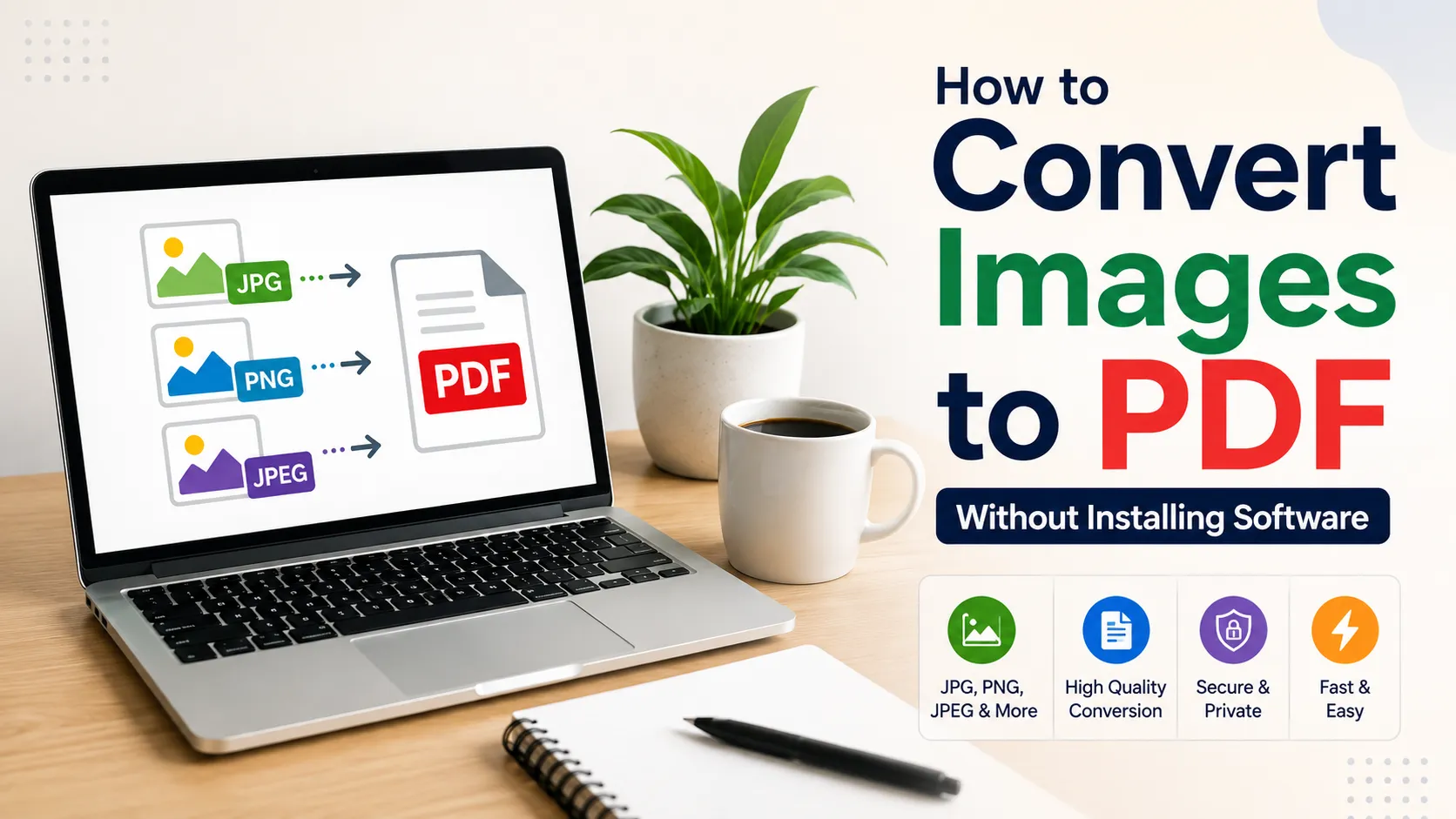
How to Convert Images to PDF Without Installing Software
Have you ever received multiple images and needed to combine them into a single PDF file?
Maybe you want to submit documents online, create a portfolio, send scanned notes, or share important photos in a cleaner format. Installing software just for this small task feels unnecessary.
The easiest solution is to convert images to PDF online using a free browser-based tool. You can turn JPG, PNG, screenshots, and scanned images into a PDF file within seconds without installing any application.
This guide explains how image to PDF conversion works, different ways to create PDF files from images, common mistakes to avoid, and how you can complete the process quickly.
What Does It Mean to Convert Images to PDF?
Converting images to PDF means combining one or more image files such as JPG, PNG, or photos into a single PDF document that is easier to share, print, and store.
A PDF keeps the original image layout and allows multiple pages to exist inside one document. Instead of sending ten separate image files, you can send one organized PDF file.
For example:
- A student can combine handwritten notes into one PDF.
- A business owner can convert product images into a catalog.
- A job applicant can create a PDF portfolio from screenshots and designs.
- A user can combine scanned documents into one file.
The good thing is that you don't need advanced software. A simple online image to PDF converter can handle the entire process.
How to Convert Images to PDF Online Without Installing Software
The simplest way to convert images to PDF is by using an online PDF tool. The process usually takes only a few steps.
Step 1: Select Your Images
Choose the images you want to convert.
Most online tools support common formats like:
- JPG
- JPEG
- PNG
- WebP
- BMP
Before uploading, check that your images are clear and arranged in the correct order.
For example, if you are converting scanned documents, rename files like:
page-1.jpg
page-2.jpg
page-3.jpg
This helps maintain the correct sequence.
Step 2: Upload Images to an Image to PDF Converter
Open a trusted online image to PDF converter and upload your files.
The tool processes your images directly inside your browser or through secure servers depending on how the service works.
For quick conversions, you can use the free Image to PDF tool on TechbyJeel Tools.
Internal Link:
Anchor Text: Image to PDF Converter
Step 3: Adjust PDF Settings
Many converters allow you to customize options such as:
- Page size
- Image orientation
- Margins
- Image quality
- Page order
For normal documents, the default settings usually work well.
For printing purposes, choose higher image quality to maintain clarity.
Step 4: Download Your PDF File
After conversion, download the PDF file and open it to verify:
- All images are included
- Pages are in the correct order
- Text and images look clear
That's it. Your PDF is ready without installing any software.
Why Convert Images to PDF Instead of Sharing Images Directly?
Many people simply send images separately, but PDF files are often better for professional and personal use.
Here are some advantages:
| Images | PDF Files |
|---|---|
| Multiple separate files | One organized document |
| Harder to manage | Easier to share |
| Different sizes and formats | Consistent format |
| May lose order | Maintains page sequence |
| Less suitable for printing | Designed for documents |
A PDF also looks more professional when submitting documents for work, education, or official purposes.
Common Uses of Image to PDF Conversion
Image to PDF conversion is useful in many everyday situations.
1. Creating Digital Documents
Many people scan receipts, certificates, invoices, and forms using their phone camera.
Converting these images into PDF files makes storage and sharing much easier.
Example:
Instead of keeping:
- receipt1.jpg
- receipt2.jpg
- receipt3.jpg
You can create:
Expense_Receipts_2026.pdf2. Submitting Documents Online
Schools, universities, companies, and government portals often request PDF files.
If your documents are saved as images, converting them into one PDF makes submission faster.
3. Creating Presentations or Portfolios
Designers, photographers, and freelancers often create PDF portfolios.
You can combine:
- Project screenshots
- Design samples
- Product photos
- Certificates
into one professional document.
4. Sharing Photos Easily
A PDF is useful when you want to share multiple photos without sending many attachments.
For example:
- Travel photo collection
- Event pictures
- Product images
- Study materials
Online Image to PDF Converter vs Installed Software
Many users wonder whether online tools are better than desktop applications.
The answer depends on your needs.
| Feature | Online Converter | Installed Software |
|---|---|---|
| Installation required | No | Yes |
| Works on any device | Usually yes | Limited |
| Quick conversions | Yes | Yes |
| Advanced editing | Limited | Better |
| Storage usage | No installation space | Requires storage |
For occasional conversions, an online tool is usually the easiest option.
If you regularly edit hundreds of documents, professional PDF software may make more sense.
Is It Safe to Convert Images to PDF Online?
Security depends on the tool you choose.
Before uploading files, check:
- The website uses HTTPS
- The tool has a privacy policy
- Files are automatically deleted after processing
- The service has a good reputation
Avoid uploading highly sensitive documents like:
- Password files
- Financial records
- Private legal documents
unless you trust the service.
For regular files like notes, screenshots, or public images, online conversion is usually convenient.
Common Mistakes Beginners Make When Creating PDFs From Images
A few small mistakes can reduce PDF quality.
Uploading Low-Quality Images
If your original image is blurry, the PDF will also look blurry.
Always use clear images whenever possible.
Ignoring Image Order
When converting multiple images, the wrong order can make documents confusing.
Rename files before uploading if needed.
Using Huge Image Files
High-resolution images can create unnecessarily large PDF files.
If your PDF becomes too large, you can compress it afterward.
Internal Link:
Anchor Text: Compress PDF Files Online
URL: Compress PDF Files Online
Not Checking the Final PDF
Always open the final file before sharing.
Check:
- Missing pages
- Incorrect rotation
- Poor quality
- Wrong page order
A quick review can prevent mistakes later.
How to Convert JPG and PNG Images to PDF on Different Devices
The process of converting images to PDF is almost the same across devices. You don't need a powerful computer or special software.
Here is how it works on different platforms.
Convert Images to PDF on Windows
Windows users can create PDFs without installing extra applications.
Follow these steps:
1. Select the images you want to convert.
2. Right-click and choose Print.
3. Select Microsoft Print to PDF as the printer.
4. Adjust image size and layout.
5. Click Print.
6. Save the PDF file.
This built-in option works well for basic conversions.
However, if you need features like image ordering, compression, or batch conversion, an online image to PDF converter is usually faster.
Convert Images to PDF on Mac
Mac users can use the built-in Preview application.
Steps:
1. Open images in Preview.
2. Select all images from the sidebar.
3. Arrange them in the correct order.
4. Click File.
5. Choose Export as PDF.
6. Save the document.
This method works without downloading additional software.
Convert Images to PDF on Android and iPhone
Mobile users often need to convert images captured from their camera into PDF files.
Common examples:
- Scanning documents
- Saving receipts
- Sending forms
- Creating study notes
Most smartphones already include built-in PDF options, but online tools can be easier when you need multiple images combined into one document.
A browser-based converter allows you to complete the task without filling your phone storage with extra apps.
Tips to Create Better PDF Files From Images
A good PDF is not just about converting files. The quality of the original images matters.
Here are some practical tips:
Use Clear Images
Avoid blurry or dark photos.
For scanned documents:
- Keep the camera steady
- Use good lighting
- Avoid shadows
- Capture the entire page
Keep the Correct Orientation
A common problem is rotated pages.
Before creating your PDF:
- Check portrait and landscape images
- Rotate sideways images
- Maintain consistent page direction
Optimize File Size
Large PDFs can become difficult to upload or share.
For example:
A PDF containing 20 high-resolution smartphone photos can easily become hundreds of megabytes.
To reduce size:
- Compress images before conversion
- Choose reasonable quality settings
- Remove unnecessary pages
You can also use PDF optimization tools after creating your document.
Image to PDF Conversion for Business and Professional Work
Businesses use image to PDF conversion more often than many people realize.
Some common examples include:
Invoice Management
Companies often receive invoices as images.
Converting them into PDFs helps with:
- Digital storage
- Email sharing
- Record keeping
Product Catalog Creation
Online sellers can combine product photos into PDF catalogs.
Instead of sending dozens of images individually, they can share one professional document.
Employee Documentation
HR teams may convert scanned forms, certificates, and documents into PDFs for easier management.
Benefits of Using Online Image to PDF Tools
Online converters are popular because they solve a simple problem quickly.
Main benefits include:
No Installation Required
You don't need to download large software packages.
This is useful when:
- Using a public computer
- Working on a new device
- Having limited storage
Works Across Devices
A browser-based tool works on:
- Windows computers
- Mac devices
- Android phones
- iPhones
- Tablets
Saves Time
Installing software, creating accounts, and learning complicated interfaces can take longer than the actual conversion.
For a simple task, a quick online tool is often enough.
Recommended Workflow for Converting Images to PDF
For the best results, follow this simple workflow:
1. Organize your images.
2. Rename files in the correct order.
3. Remove unnecessary images.
4. Convert images into PDF.
5. Check the final document.
6. Compress the PDF if the file size is too large.
7. Share or store the document.
This process works for personal documents, school assignments, business files, and professional projects.
Try Free Image and PDF Tools on TechbyJeel Tools
If you regularly work with documents, images, and files, having the right tools saves a lot of time.
You can explore free online tools on TechbyJeel Tools for tasks like:
- Image conversion
- PDF management
- File optimization
- Developer utilities
- Productivity tasks
Explore more free tools and complete your daily tasks faster.
External References
For more information about PDF standards and document formats:
- Adobe PDF documentation - https://www.adobe.com/acrobat/about-adobe-pdf.html
- Mozilla Web Docs - https://developer.mozilla.org/
- W3C Web Standards - https://www.w3.org/
Conclusion
Converting images to PDF doesn't need complicated software or technical knowledge. With an online image to PDF converter, you can combine JPG, PNG, and photo files into a professional PDF within a few clicks.
The best approach is to organize your images, check the quality, convert them into PDF, and review the final file before sharing.
Try our free online tools on TechbyJeel Tools to convert, manage, and optimize your files faster. Browse related tools and make your daily digital tasks easier.
FAQ Section
1. How can I convert images to PDF without installing software?
You can convert images to PDF without installing software by using an online image to PDF converter. Upload your JPG, PNG, or photo files, arrange them in order, adjust settings if needed, and download the generated PDF file directly from your browser.
2. Can I convert JPG images into one PDF file?
Yes, you can combine multiple JPG images into a single PDF file. Most image to PDF tools allow you to upload several images at once and automatically create a multi-page PDF document while keeping your selected page order.
3. Is converting images to PDF free?
Many online image to PDF converters offer free conversion options. Free tools are usually enough for everyday tasks like creating documents, combining photos, scanning notes, and preparing files for online submissions.
4. Does converting images to PDF reduce image quality?
The quality depends on the conversion settings and the original image. If you upload clear, high-resolution images and select suitable quality settings, the PDF will maintain good visual quality.
5. Can I convert images to PDF on my phone?
Yes, you can convert images to PDF directly from your smartphone browser. Online tools work on Android and iPhone devices, allowing you to create PDF files without installing additional apps.